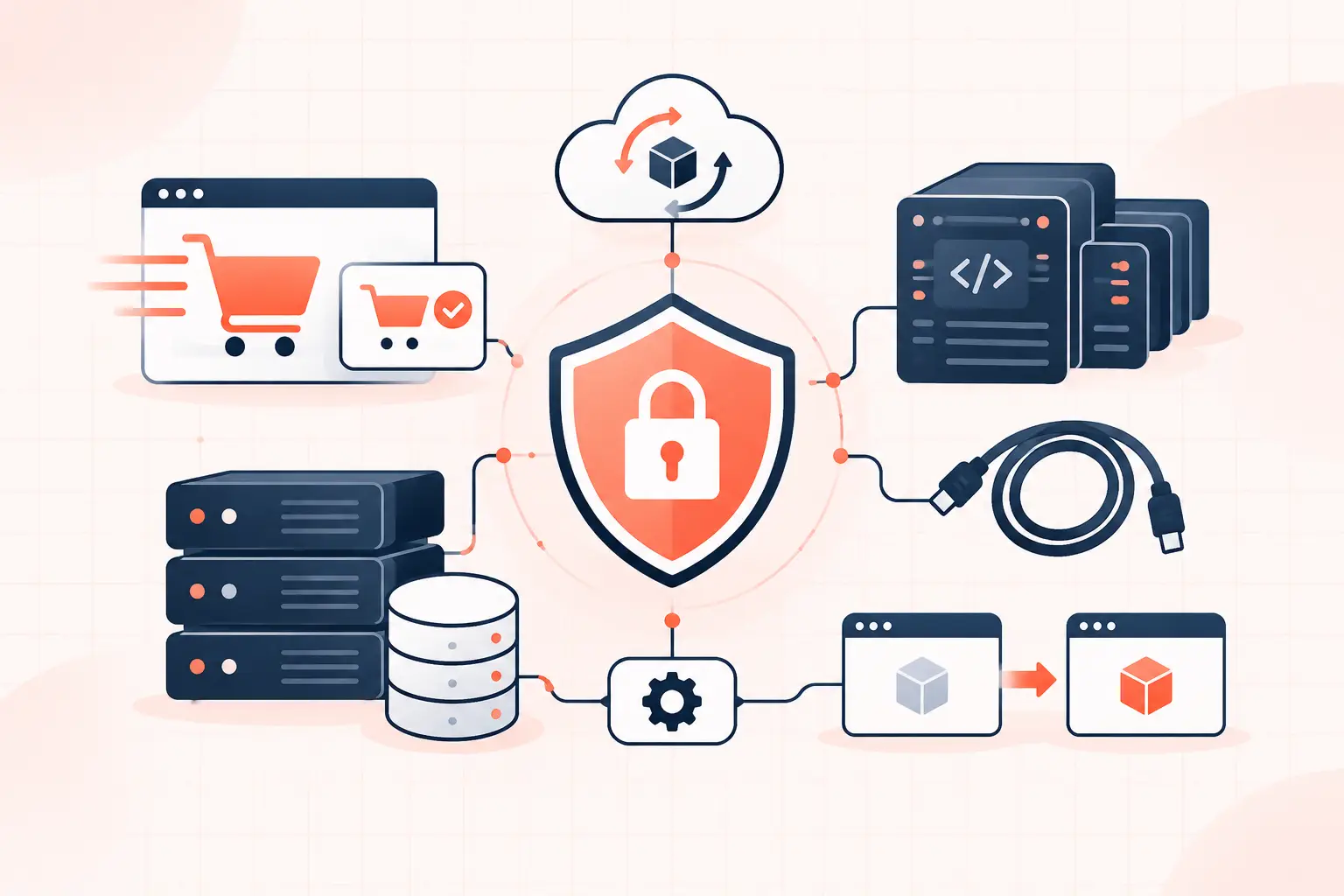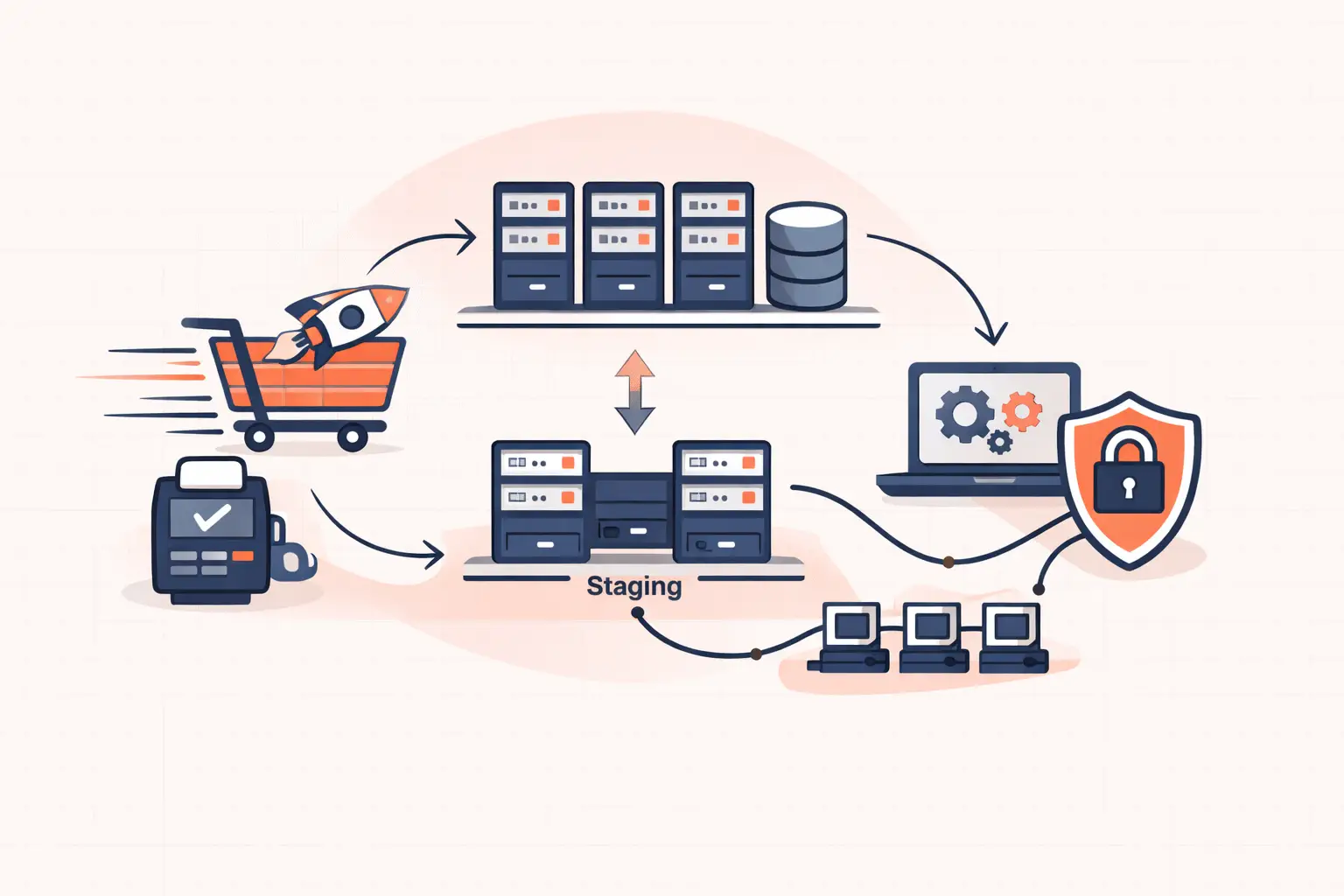
A WordPress deployment guide should do more than tell you to click Update. A production release can change PHP code, database structure, generated assets, cache behavior, and checkout logic in one move. The safe path is simple: test on a production-like staging site, take a restorable backup, deploy a known code version, run required database updates deliberately, clear the right caches, verify critical journeys, and keep a fast rollback ready.
For a brochure site, that process may take ten minutes. For WooCommerce, membership, LMS, or high-traffic publishing sites, deployment discipline protects revenue. A broken cart, expired nonce behavior, or PHP worker pileup can be more expensive than the update itself.
What a safe WordPress deployment actually includes
WordPress does not separate application code and database changes as cleanly as a typical framework application. Core updates can require database upgrades. Plugins may create or alter tables. Page builders can regenerate CSS. WooCommerce extensions can update scheduled actions or payment flows. That is why copying files to a server is only one part of the release.
Treat each deployment as a controlled change with four parts: a defined release scope, a tested artifact, production verification, and a rollback decision. If you cannot state what changed and how to reverse it, you are not ready to deploy.
| Deployment stage | Purpose | Failure it prevents |
|---|---|---|
| Preflight | Confirm scope, backups, capacity, and known risks | Surprise changes and unrecoverable mistakes |
| Staging test | Exercise the release against realistic data and settings | Plugin conflicts and broken templates |
| Production release | Apply a versioned change during a controlled window | Partial, inconsistent updates |
| Verification and rollback | Check real user paths and reverse quickly if needed | Long outages and silent revenue loss |
Build a staging environment that can catch real failures
A staging site is useful only when it resembles production closely enough to expose the same failures. Matching PHP versions, database engine versions, object cache behavior, web server rules, and active plugins matters more than having a staging subdomain.
Do not blindly clone live customer data into staging. WooCommerce stores customer addresses, orders, and potentially personal information. Sanitize the database where required, disable outgoing email, and prevent payment gateways, webhooks, inventory integrations, and scheduled jobs from talking to live services.
In `wp-config.php`, make the environment explicit. Many teams use environment variables, but even a basic constant helps plugins and custom code avoid production-only behavior:
define( 'WP_ENVIRONMENT_TYPE', 'staging' ); define( 'WP_DEBUG', true ); define( 'WP_DEBUG_LOG', true ); define( 'WP_DEBUG_DISPLAY', false );Never leave debug display enabled on production. Errors shown in a browser can reveal file paths, plugin versions, database details, or custom code behavior. Production logging is useful, but display should remain off.
Before approving a staging release, test the pages and actions that make the site money. On WooCommerce, that means product pages, cart updates, coupon application, shipping calculation, checkout, payment authorization, order confirmation, transactional email, and account access. A homepage that looks correct proves very little.
Prepare the release before touching production
Avoid editing plugin files through the WordPress admin, uploading random ZIP files over an existing install, or applying updates one at a time without recording versions. Those habits create deployments that cannot be reproduced or rolled back cleanly.
Keep custom themes, plugins, must-use plugins, and configuration templates in version control. Pin dependency versions where your build process supports it. If you use Composer for plugins or libraries, generate the production artifact before the maintenance window rather than resolving dependencies on the live server.
Your preflight should answer a few operational questions in writing: What versions are changing? Does any component run a database migration? Is there a compatible PHP version requirement? Does the release rebuild CSS, JavaScript, or page-builder assets? Which caches must be purged? Who decides whether to roll back?
Take both a database backup and a file backup, then confirm they are usable. A backup notification is not proof of restoration. For a busy store, the recovery point objective matters: restoring last night's database can lose orders placed since then. Hourly backups reduce that exposure, but they do not replace a release-specific restore point immediately before a risky change.
If you use WP-CLI, capture the current state first:
wp core version wp plugin list --format=table wp theme list --format=table wp option get home wp option get siteurlSave the output with the release record. When a site fails after an update, knowing exactly what was active before the change cuts diagnosis time sharply.
Deploy WordPress code in a predictable order
Put the site in a controlled maintenance state only for the portion of the release that requires it. A content site may tolerate a short maintenance page. A store should avoid taking checkout down during peak traffic unless the change truly demands it. Some deployments can replace versioned assets and code without an obvious visitor interruption, but database migrations and cache transitions still need care.
A typical code-based release follows this order:
- Enable maintenance mode if the release can create inconsistent front-end or checkout behavior.
- Deploy the tested code artifact, including themes, plugins, must-use plugins, and compiled assets.
- Run required WordPress, WooCommerce, or plugin database updates deliberately.
- Flush application and server caches in the correct order.
- Disable maintenance mode and perform production checks.
With WP-CLI, the commands may look like this:
wp maintenance-mode activate wp core update-db wp cache flush wp rewrite flush --hard wp maintenance-mode deactivateDo not run `wp plugin update --all` as part of an unreviewed production release. It is convenient, but it turns a controlled change into an unknown bundle of changes. Update specific tested versions instead. The same caution applies to automatic updates for complex WooCommerce stacks. Auto-updates can be sensible for low-risk security patches, but they need monitoring and a rollback path.
Database changes deserve special attention. Rolling back plugin files does not always roll back database schema changes or transformed data. If a plugin migration is irreversible, snapshot the database immediately before it runs and confirm the vendor's downgrade guidance. For large tables, migrations can also lock tables or create query pressure. Run them outside peak traffic and watch database latency.
Clear caches without causing a second outage
Cache purging is frequently handled as an afterthought. It should be part of the deployment plan because stale page cache, object cache, CDN cache, and opcode cache can each produce different symptoms.
Purge only what needs purging when possible. A global cache flush on a high-traffic site can cause a cache stampede: thousands of visitors suddenly request uncached PHP pages, PHP workers saturate, TTFB rises, and the database gets hit with repeated expensive queries. If your platform supports cache warming or stale-cache serving, use it for broad releases.
Know which layer owns which data. Full-page cache affects anonymous HTML. Redis or another object cache can retain transients and query results. PHP OPcache retains compiled PHP in worker memory. A CDN can continue serving old CSS or JavaScript even after the origin is correct. Versioned asset filenames reduce the need for aggressive CDN invalidation and prevent users from receiving new HTML with old assets.
For logged-in users and carts, verify cache exclusions. Cart, checkout, account, and personalized pages must not be served as shared cached HTML. On WooCommerce, also inspect AJAX or Store API requests after deployment. A fast cached product page does not help if `wc-ajax` requests are failing or checkout requests are waiting behind exhausted PHP workers.
Verify production with a short, serious checklist
Production verification should use the public site, not only the admin dashboard. Open a private browser window or use a separate logged-out session. Confirm that pages return the expected content, static assets load without mixed-content or 404 errors, and forms work.
For commerce sites, complete a real test order using a safe payment method or gateway sandbox when available. Confirm the order reaches WordPress, the payment provider, inventory logic, confirmation email, and any fulfillment integration. Then check server error logs and the WordPress debug log for fresh warnings or fatal errors.
Watch metrics during and after the release. Rising 5xx responses, slow PHP execution, database connection failures, queue growth, and a TTFB jump are operational signals, not cosmetic issues. A high-frequency CPU such as the AMD Ryzen 9950X can reduce PHP execution time for demanding WordPress workloads, but hardware cannot compensate for a bad query loop, uncached personalized endpoint, or too few PHP workers.
Make rollback faster than diagnosis
Set rollback criteria before the release. Examples include checkout failures, a sustained increase in 5xx errors, a critical user flow failing, or materially worse response times. Do not wait for a complete outage if the evidence is already clear.
The rollback method depends on what changed. Reverting code is usually quick when releases are versioned. Reverting a database migration may require restoring the release-point database backup, which can overwrite orders or content created after the backup. For that reason, a high-risk migration may need a maintenance window, temporary write restrictions, or a migration strategy designed to be backward compatible.
After rollback, preserve logs, error messages, and the exact release versions. Fix the issue in staging, reproduce the failure if possible, and create a new deployment rather than improvising changes on production.
The best deployment process is not the one with the most tools. It is the one your team can execute calmly under pressure, with current backups, production-like staging, clear ownership, and enough infrastructure headroom to absorb a cache miss or traffic spike without putting the site at risk.