

Imagine logging into your WordPress dashboard on a Monday morning and finding nothing but a blank screen or a critical error. No content, no settings, no customer data. For small businesses and agencies, that scenario translates directly into lost revenue, broken client trust, and hours of frantic troubleshooting. The good news is that a solid backup and restore strategy puts you completely back in control. This guide covers everything you need: what to back up, which tools to use, how to create backups reliably, and how to verify that your restores actually work when it counts.
Table of Contents
- What makes a complete WordPress backup
- How to choose your WordPress backup method and tools
- Step-by-step: Creating regular WordPress backups
- How to test, restore, and avoid common backup mistakes
- What most guides miss about WordPress backup and restore
- Ready to secure your WordPress site for good?
- Frequently asked questions
Key Takeaways
| Point | Details |
|---|---|
| Full backup essentials | A reliable backup includes both your WordPress files and database for a complete site recovery. |
| Backup tool selection | Choose a backup tool based on automation, off-site storage, and ease of restore—not just cost. |
| Frequent and safe testing | Regularly test your backups in a staging environment to ensure restore reliability. |
| Avoid common mistakes | Never trust untested backups or run restore tests on your live site. |
What makes a complete WordPress backup
Once you understand the risks, it’s important to know exactly what goes into a real WordPress backup.
Most people assume a backup is just a copy of their files. That assumption causes real problems during recovery. A reliable WordPress backup must include both the WordPress files and the WordPress database, so you can fully restore the site. Miss either one and you’re left with half a site that won’t function.
Here’s a breakdown of what each part contains:
| Backup component | What it includes |
|---|---|
| WordPress files | Themes, plugins, uploads (media), wp-config.php, core files |
| WordPress database | Posts, pages, users, settings, comments, plugin data |
Both components are equally critical. Your files contain the code and media that make your site look and behave the way it does. Your database contains every piece of content and configuration that makes it yours. Without the database, your site is an empty shell. Without the files, there’s nothing to serve the data.
There are several key reasons to back up WordPress that go beyond simple peace of mind. Consider these scenarios where a full backup is the only path to recovery:
- Malware infection: Cleaning a hacked site requires reverting to a known clean state. A partial backup won’t get you there.
- Failed plugin or theme update: A bad update can break your entire site in seconds. A full backup lets you roll back cleanly.
- Site migration: Moving to a new host requires both files and database to rebuild the site identically.
- Development rollbacks: Agencies testing new features need a reliable restore point before pushing changes live.
A common pitfall is relying on database-only exports from phpMyAdmin. That approach saves your content but loses your theme customizations, uploaded images, and plugin configurations stored as files. Another frequent mistake is forgetting wp-config.php, which contains your database credentials and security keys.
Expert note: WordPress multisite installations require extra care. You need to validate that all subsites are included in the file backup and that database table prefixes map correctly to each subsite. Standard one-click backup tools sometimes miss subsite media or mismap tables during restore. Always verify subsite functionality individually after restoring a multisite network.
The benefits of WordPress maintenance extend well beyond backups, but a complete backup strategy is the foundation everything else builds on. Get this part right first.
How to choose your WordPress backup method and tools
With backup requirements clear, the next step is finding the best method and tool for your site’s needs.
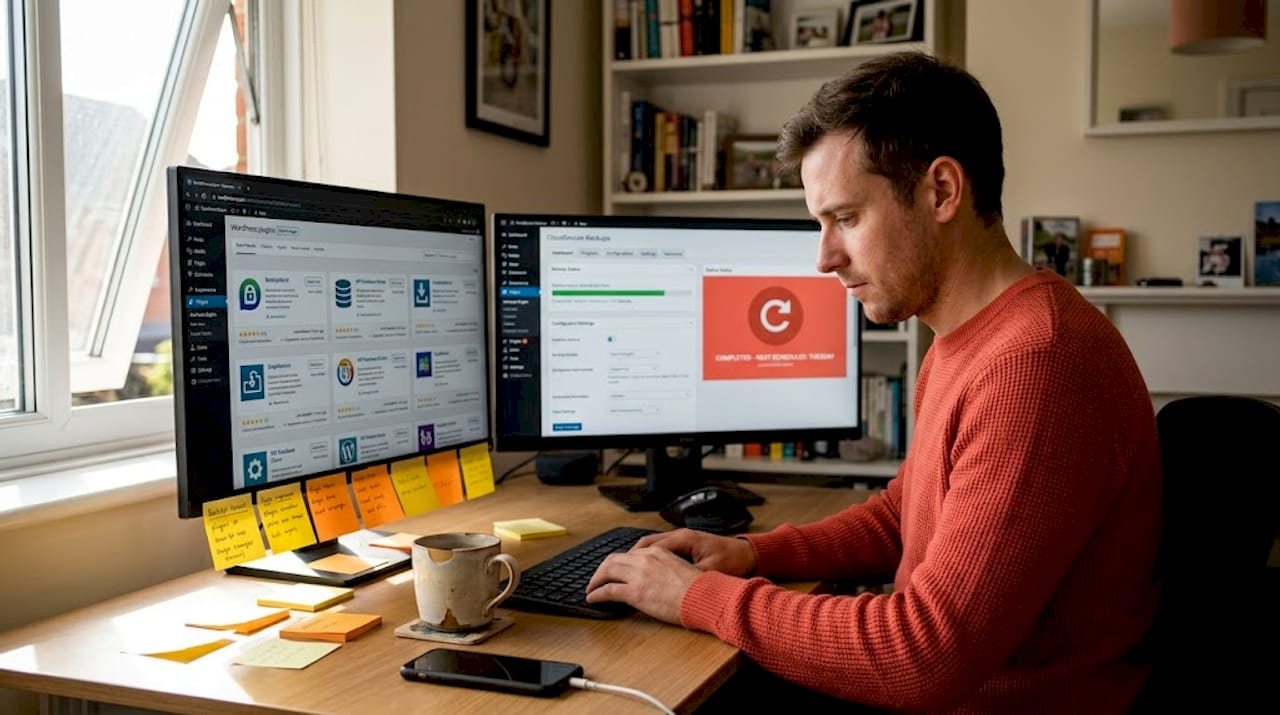
There are three main approaches: manual backups using FTP and phpMyAdmin, plugin-based backups, and managed hosting backups. Each has a distinct trade-off. As one plugin comparison study puts it, choosing a backup tool is a trade-off between control and operational simplicity. Manual methods give you the most control but demand technical skill and consistent discipline. Plugins automate the process but vary widely in reliability and restore quality. Managed hosting backups are the most hands-off option but may limit restore granularity.
Here’s how the most popular tools compare:
| Tool | Automation | Off-site storage | Restore workflow | Cost |
|---|---|---|---|---|
| UpdraftPlus | Scheduled | Yes (Google Drive, S3, Dropbox) | Plugin dashboard | Free / Premium |
| BlogVault | Daily/real-time | Yes (BlogVault servers) | One-click | Paid |
| Jetpack VaultPress | Daily/real-time | Yes (WordPress.com) | Dashboard | Paid |
| Manual (FTP + phpMyAdmin) | None | Manual | Manual | Free |
Key factors to evaluate when selecting your approach:
- Automation frequency: Can it back up daily or hourly without your involvement?
- Off-site storage: Does it send backups to a location separate from your server? On-server backups disappear if the server fails.
- Restore features: Can you restore individual files, specific database tables, or only full-site restores?
- Support quality: When something goes wrong at 2 a.m., is there someone to help?
The right choice depends on your business size and risk tolerance. A simple brochure site updated monthly can get by with weekly plugin-based backups to cloud storage. An e-commerce store processing daily orders needs real-time or at minimum daily incremental backups with tested restore workflows. Agencies managing dozens of client sites should look at solutions with centralized dashboards and bulk restore capabilities.
Pro Tip: Choose a plugin that supports incremental backups, meaning it only saves what changed since the last backup rather than copying the entire site every time. This reduces storage costs and backup duration significantly, especially for large sites.
Understanding the importance of website maintenance helps frame backup tool selection as part of a broader protection strategy rather than a one-time setup task. For teams that need guidance on ongoing site health, exploring WordPress support options can clarify what level of managed assistance makes sense for your workload. You can also stay current with plugin and tool updates through the latest WordPress news.
Step-by-step: Creating regular WordPress backups
After selecting your backup solution, it’s time to put your plan into action.
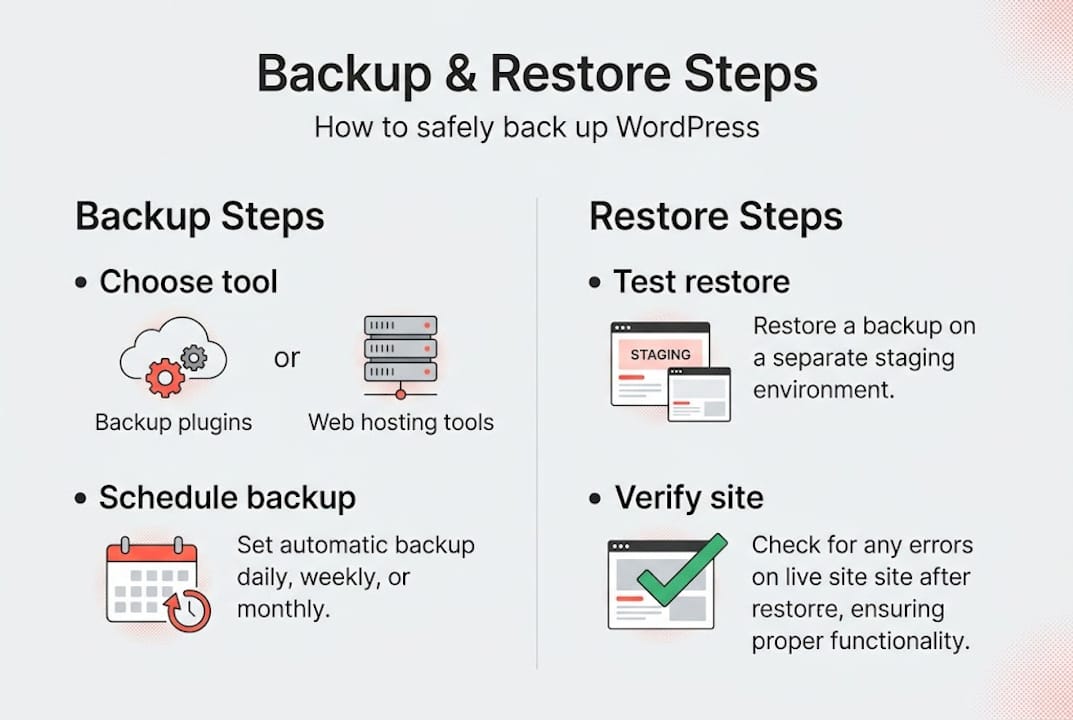
The process looks different depending on whether you’re going manual or using a plugin, but the core logic is the same: capture files, capture database, store both off-site, and confirm success.
Setting up automated backups with a plugin (recommended for most users):
- Install your chosen backup plugin from the WordPress repository or upload it manually.
- Connect an off-site storage destination such as Amazon S3, Google Drive, or Dropbox.
- Configure your backup schedule. Set it to match how often your content changes.
- Select what to include: all WordPress files plus the full database. Do not exclude wp-config.php or the uploads folder.
- Run a manual backup immediately to confirm the setup works before relying on automation.
- Enable email or dashboard notifications for failed backups so you’re alerted if something breaks silently.
For manual backups using FTP and phpMyAdmin:
- Connect to your server via FTP (using a client like FileZilla) and download the entire WordPress root directory.
- Log into your hosting control panel and open phpMyAdmin.
- Select your WordPress database, click Export, choose the SQL format, and download the file.
- Store both the FTP download and the SQL file in a labeled folder on cloud storage or an external drive.
As the WordPress Developer Documentation confirms, WordPress backups have two parts: files and database, and neither alone is enough for a typical full restore. That principle applies regardless of which method you use.
How often should you back up?
- Static or rarely updated sites: Weekly backups are usually sufficient.
- Blogs or content sites updated a few times per week: Daily backups.
- E-commerce or membership sites with daily transactions: Real-time or hourly incremental backups.
Why timely WordPress backups matter becomes very clear the moment you realize that a daily backup means you could lose up to 24 hours of orders, registrations, or published content in a worst-case scenario.
Pro Tip: Store at least three backup versions and keep copies in two separate locations. One copy on cloud storage and one on a local drive gives you redundancy if one storage provider has an outage.
Research consistently shows that a significant portion of businesses that experience major data loss never fully recover operationally. The risk is real, and the cost of prevention is far lower than the cost of recovery. Keeping your plugins updated regularly also reduces the chance of a backup-triggering failure in the first place.
How to test, restore, and avoid common backup mistakes
Once backups are running, the final piece is ensuring you can actually restore when it matters.
Safe restore workflow:
- Set up a staging environment that mirrors your live site. Most quality hosts provide one-click staging, or you can use a local environment tool like LocalWP.
- Import your backup files to the staging server using your plugin’s restore function or manually via FTP and phpMyAdmin.
- Update the wp-config.php file if the database credentials differ on the staging environment.
- Run a thorough content check: verify posts, pages, images, plugin settings, forms, and e-commerce products.
- Test core site functions including checkout flows, contact forms, and user logins.
- Only after confirming everything works should you consider restoring to the live site, and only during a low-traffic window.
Always test restores in a non-production (staging) setting. As restore testing best practices confirm, you should test restoring to a staging or cloned environment and never test restores on the live production site. A failed restore attempt on a live site can make a bad situation catastrophically worse.
Common mistakes that put your recovery at risk:
- Storing backups only on the same server as your live site
- Never testing whether a backup actually restores correctly
- Excluding the uploads folder or wp-config.php from file backups
- Running a restore test directly on the production site
- Ignoring storage redundancy and keeping only one backup copy
- Letting backups accumulate without checking for failed or corrupt files
Avoiding these pitfalls is well documented in resources covering common WordPress backup mistakes. The most dangerous mistake is the quiet one: assuming your backups work without ever verifying them.
How often should you test restores?
- Small business sites: Test a full restore at least once per quarter.
- E-commerce or high-traffic sites: Test monthly, especially after major updates or migrations.
- Agencies managing client sites: Build restore testing into your monthly maintenance checklist.
A WordPress staging area is not just useful for development. It’s your safest testing ground for restore validation. If you ever encounter a restore that fails or produces errors, resources on fixing WordPress errors can help you diagnose and resolve the issue quickly.
For multisite networks, test restores for individual subsites separately. Confirm that database table prefixes map correctly and that media files for each subsite appear in the right locations. A network-level restore that looks successful can still have broken subsites if this mapping isn’t validated.
What most guides miss about WordPress backup and restore
Most backup guides focus almost entirely on the mechanics of creating a backup. Install a plugin, set a schedule, connect cloud storage. Done. But that framing misses the most important part of the whole exercise: knowing with certainty that you can restore under real pressure.
The uncomfortable truth is that a backup you’ve never restored from is just a file sitting on a server. You don’t actually know if it works until you test it. And testing it once when you first set things up isn’t enough. Plugins update, site structures change, database sizes grow. A backup process that worked flawlessly six months ago can fail silently today.
Edge cases make this even more critical. Multisite networks, custom database prefixes, and sites with large media libraries all introduce restore complexity that standard tutorials don’t address. Cloud-based restores across different server environments add another layer of variables. These aren’t rare scenarios for agencies managing multiple client sites. They’re routine.
Pro Tip: Schedule a quarterly restore drill. Pick a recent backup, restore it to a staging environment, and document what broke and what you had to fix. Improve your process each time. After two or three cycles, you’ll have a restore playbook that actually reflects your real site setup.
Recovery confidence doesn’t come from having backups. It comes from having restored successfully under controlled conditions before you ever need to do it under pressure. Addressing avoiding backup mistakes proactively is what separates sites that recover in an hour from sites that are down for days.
Ready to secure your WordPress site for good?
Managing backups manually takes real time and discipline, and even careful teams miss steps. If you want expert-level protection without the ongoing operational burden, WP Tango’s managed hosting handles backups, security updates, and restores as part of the service.
WP Tango’s affordable WordPress hosting plans include automated backups built into the infrastructure, so you’re never relying on a plugin alone. For teams that want full coverage, maintenance plans take care of every technical detail. Agencies managing multiple client sites can explore agency WordPress hosting with white-label options and centralized management. Let the infrastructure work for you.
Frequently asked questions
What should my WordPress backup include?
A complete WordPress backup must contain both your WordPress files and the database to fully restore your site. Missing either component means your restore will be incomplete and likely non-functional.
How often should I back up my WordPress site?
Back up at least as often as your content changes, with daily backups recommended for most active business sites and real-time backups for e-commerce stores. Weekly backups are acceptable only for sites that rarely update.
Can I test a WordPress restore without affecting my live site?
Yes, always test your backup in a staging or cloned environment. As restore testing guidance confirms, testing on a live production site risks making the situation worse if the restore fails.
What is the easiest way to automate WordPress backups?
The simplest approach is using a reputable WordPress backup plugin with scheduled, off-site backups enabled. Tools like UpdraftPlus or BlogVault handle automation with minimal configuration required.
What makes multisite WordPress backups more complicated?
Multisite environments require verifying subsites and database and media mapping during backup and restore, which standard one-click solutions often handle inconsistently. Always test individual subsite restores separately.