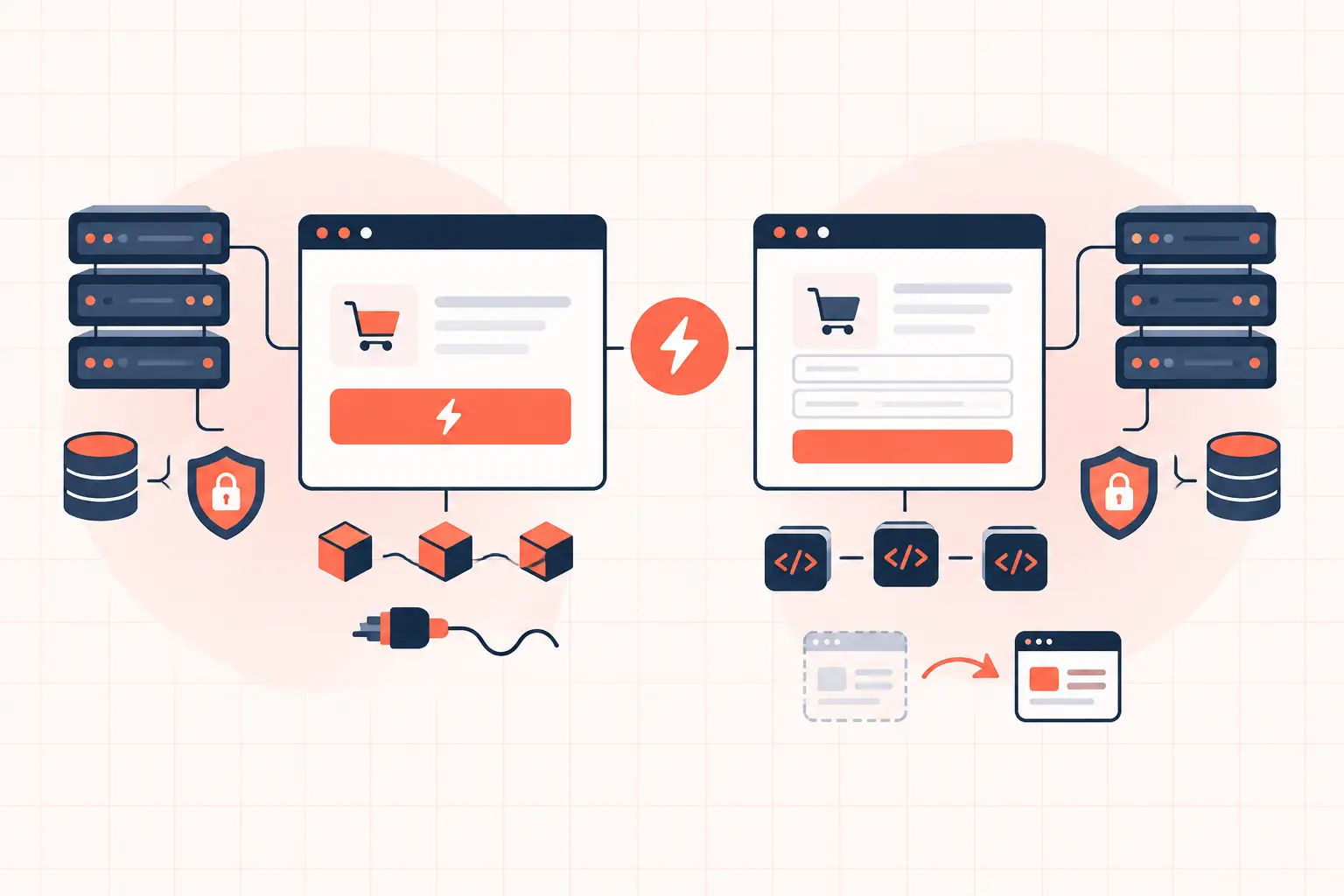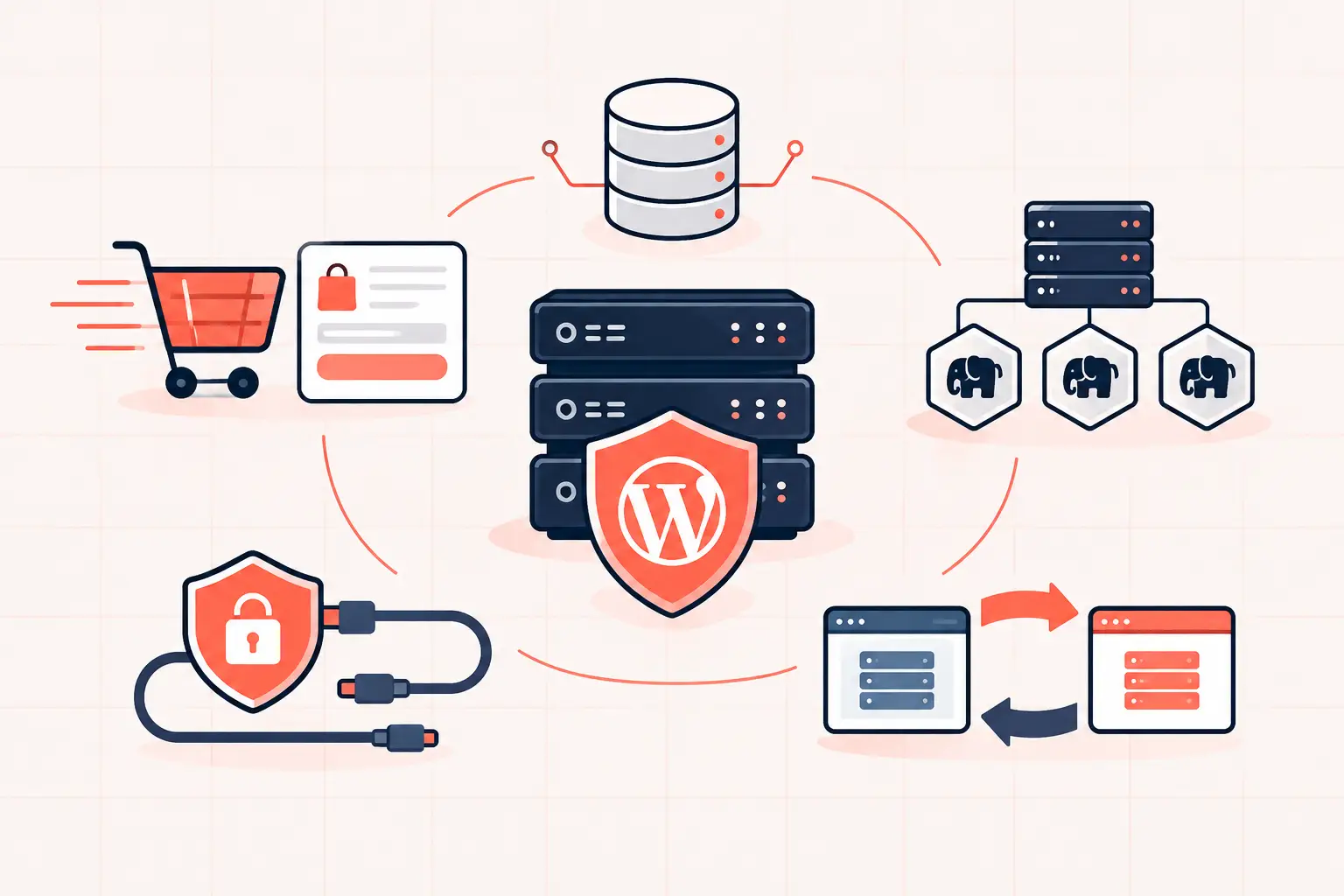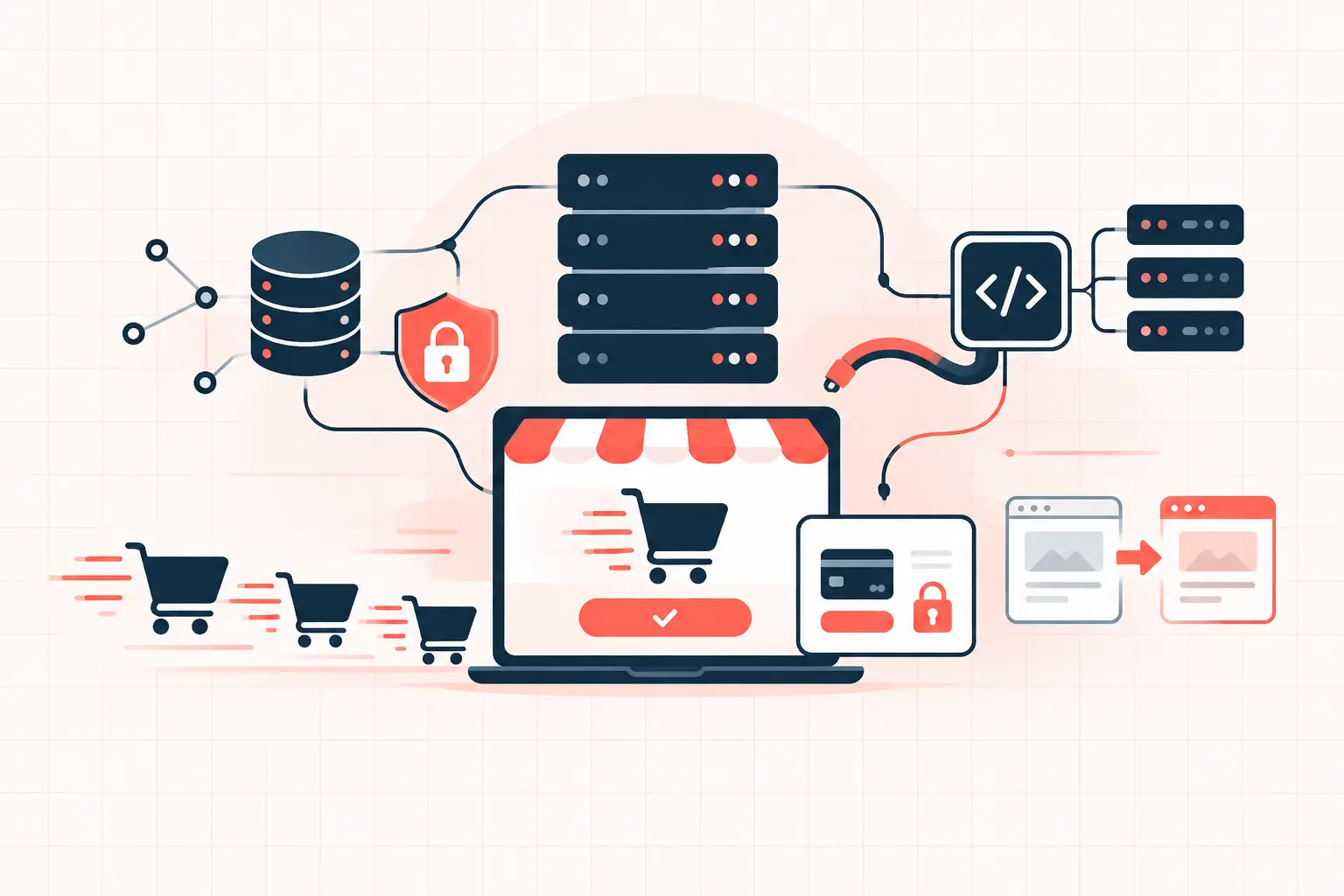
A WooCommerce traffic spike example worth studying is not a homepage that slows down. It is a store that handles 10 times its normal visitors until shoppers begin adding products to carts, then checkout response times jump from 800 ms to 20 seconds. Cached catalog pages may still look healthy. Revenue does not. The first task is to separate cacheable browsing traffic from uncached WooCommerce work, then measure whether PHP workers, MySQL, external services, or checkout code are consuming the available capacity.
The traffic spike example: 500 visitors, 20 failed checkouts
Consider a store that normally receives 50 concurrent users during a product launch. A creator mentions the product, paid ads begin delivering, and concurrent users reach 500 within minutes. The homepage and category pages are behind full-page cache, so the server returns them quickly. That creates a false sense of safety.
The trouble starts when 80 shoppers add an item to cart, apply a coupon, calculate shipping, and move to checkout. These paths cannot be safely full-page cached because each response is tied to a session, cart contents, stock level, customer data, or payment state. Every request needs PHP execution, database reads and writes, and often API calls to tax, shipping, fraud, or payment providers.
A typical failure pattern looks like this:
- PHP workers become occupied by slow cart, AJAX, or checkout requests.
- New dynamic requests wait in a queue until a worker is free.
- MySQL runs repeated autoload, session, order, and product-meta queries under contention.
- Payment callbacks time out or shoppers reload the checkout, multiplying the load.
The result is not always a visible 500 error. More often, shoppers see a spinning checkout, “unable to process payment” messages, or duplicate order attempts. Treat those as production incidents, not minor performance defects.
Why cached page speed does not prove capacity
A page-cache hit can be served by NGINX or a cache layer without using a PHP worker. That is exactly what it should do. But WooCommerce has several high-value routes that remain dynamic: cart, checkout, account pages, the Store API, order confirmation, and selected admin or webhook endpoints.
Many stores also still use `/?wc-ajax=get_refreshed_fragments` to refresh cart fragments. During a spike, this endpoint can cause unnecessary PHP and database work on pages that otherwise should be inexpensive. Themes and plugins sometimes trigger it site-wide, including for visitors with empty carts.
Do not respond by caching checkout pages. Serving one customer another customer’s cart or payment state is a serious failure. The fix is to reduce dynamic work and ensure the application tier has enough measured headroom for legitimate uncached requests.
PHP workers are a concurrency limit
Each PHP worker processes one request at a time. If a checkout request takes four seconds and a pool has 10 workers, the theoretical ceiling is roughly 2.5 such requests per second before queueing begins. Real capacity is lower because requests vary, CPU time is shared, database queries block, and third-party APIs pause execution.
Adding workers is not automatically the answer. A larger worker pool can shift the bottleneck to CPU, RAM, or MySQL and make every request slower. First identify the slow code path. Then size workers to the available hardware and the observed request duration.
On a managed stack, ask for actual data: PHP-FPM active processes, max children reached events, request duration, CPU saturation, MySQL slow queries, and upstream response times. “Your plan has more resources” is not a diagnosis.
Capture evidence during the spike
Start with server access logs and PHP-FPM status if available. Segment requests by URI, response time, status code, and cache status. You are looking for the routes consuming dynamic capacity, not merely the URLs receiving the most visits.
A practical access-log query might look like this:
awk '$7 ~ /cart|checkout|wc-ajax|wp-json/ {print $7, $9, $10}' access.log | sort | uniq -c | sort -nr | head -30Log formats differ, so adapt the fields to your server. The goal is to find whether `/checkout/`, `wc-ajax` calls, REST requests, or a specific webhook endpoint dominates the incident.
At the same time, inspect application-level timings. Enable a temporary slow-query log, use a profiling tool in staging with production-like traffic, or capture transaction traces during a controlled campaign. Do not leave broad debugging enabled on a busy production store. Debug logging can add I/O and expose sensitive context.
Check the database before blaming the database
WooCommerce stores can accumulate slow queries through oversized `wp_options` autoload data, plugins querying post meta without useful indexes, expired transients, and reports running against order tables during peak checkout periods. A database can also look slow because PHP has created a request pileup.
Measure query duration and lock waits. If queries are individually fast but PHP requests are waiting, investigate worker exhaustion or external API calls. If a query repeatedly takes hundreds of milliseconds under load, inspect its execution plan and the plugin or custom code that produced it.
High-Performance Order Storage can reduce pressure from the legacy posts and postmeta order model for compatible stores. It is not a traffic-spike button. Test extensions, reporting workflows, and custom order queries in staging before changing the storage architecture.
Fix the expensive request, not the symptom
In this WooCommerce traffic spike example, the largest gain may come from eliminating a single expensive action. Common offenders include real-time carrier-rate plugins, coupon rules that scan large order histories, a marketing plugin calling an external service on every cart update, and custom code loading every product variation into memory.
Start by disabling or deferring nonessential work around checkout in a staging environment. If shipping rates are slow, cache rate results briefly where business rules permit, reduce the number of live carrier quotes, or present a calculated fallback rate. If an analytics or CRM call blocks checkout, send it asynchronously after the order is safely recorded.
For WordPress itself, verify that a persistent object cache is configured correctly. Redis-backed object caching can reduce repeated option and object lookups, but it does not repair a slow remote API or an unindexed database query. Purging caches during a launch is also a bad habit: it converts cheap cache hits into expensive origin traffic at the worst possible time.
Review `wp-cron` as well. On stores with meaningful traffic, move scheduled tasks to a real system cron and prevent page requests from spawning cron work:
define('DISABLE_WP_CRON', true);Then schedule `wp-cron.php` at an appropriate interval through the server. Confirm that action scheduler jobs, subscription renewals, and inventory tasks still run as expected. Disabling WP-Cron without a replacement silently creates a different operational problem.
Load-test the checkout path before the campaign
A homepage benchmark is not a WooCommerce capacity test. Your test mix should include anonymous cached product views, product searches, add-to-cart actions, cart updates, checkout loads, and a safe payment-gateway test flow. Use test products and gateway sandbox credentials. Never generate fake paid orders against a live processor.
Increase load gradually and watch p95 response time, error rate, PHP worker utilization, CPU, memory, database latency, and payment failures. The p95 matters because the slowest 5 percent of requests are often where the checkout queue first appears.
Set a stop condition before testing. For example, stop when checkout p95 exceeds three seconds, when error rates rise above an agreed threshold, or when the database begins accumulating lock waits. This protects the store while producing a clear capacity boundary.
Infrastructure matters here. High-frequency CPUs such as AMD Ryzen 9950X hardware can improve PHP execution for WordPress workloads, particularly when dynamic requests are CPU-sensitive. But faster hardware cannot compensate for a plugin that blocks every checkout on a 10-second third-party request. Capacity planning requires both efficient code and enough isolated server resources.
Build an incident plan that protects orders
Before a sale, establish who can pause ads, disable a nonessential integration, contact the payment provider, and review server metrics. Keep a tested staging copy, recent backups, and a documented rollback path. The fastest fix during a launch is often a prepared feature toggle, not an emergency plugin update.
A traffic spike is useful because it exposes the exact point where a store stops behaving like an application and starts behaving like a queue. Find that queue before customers do, remove the work that does not belong in checkout, and give the remaining requests the compute and database capacity they have earned.