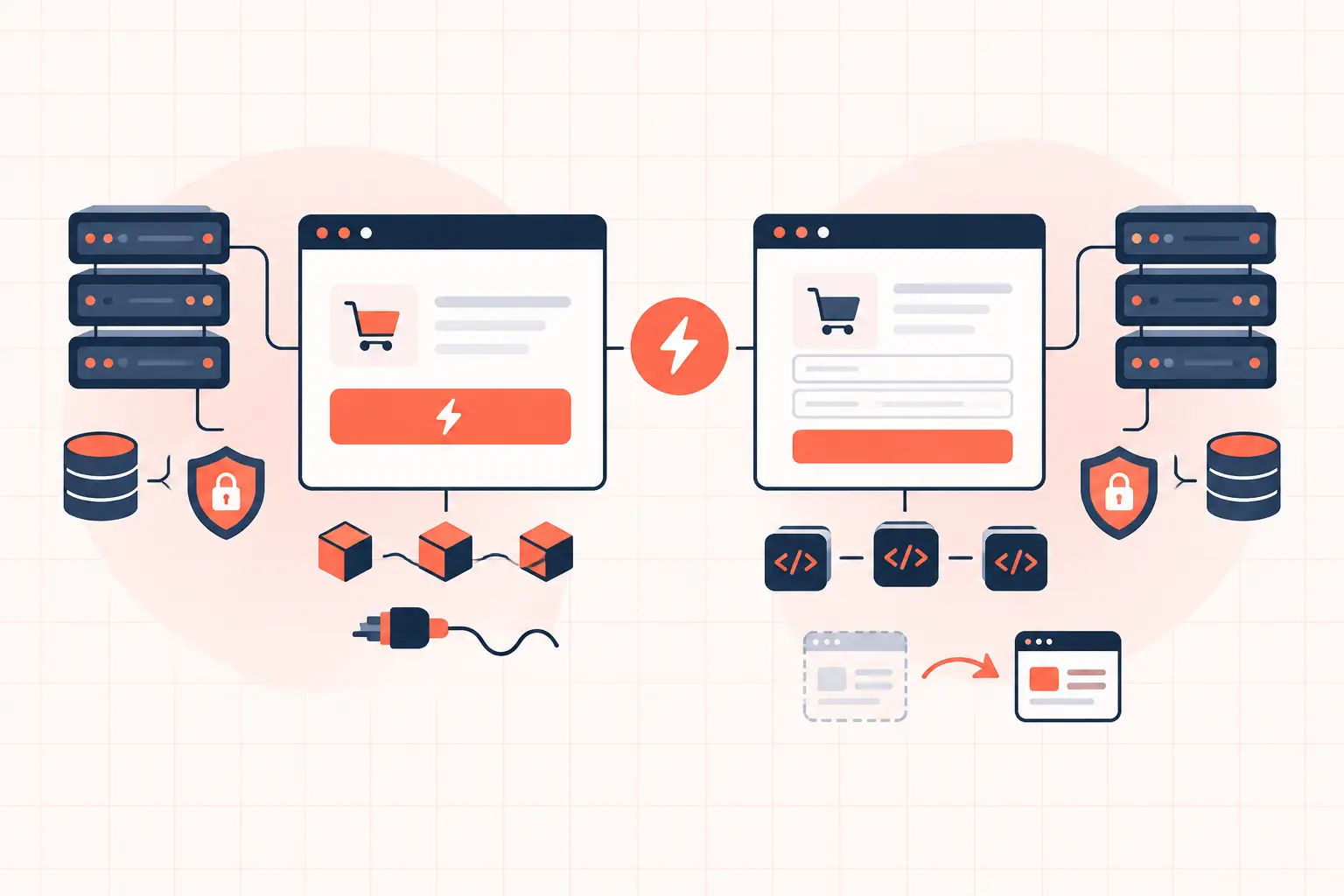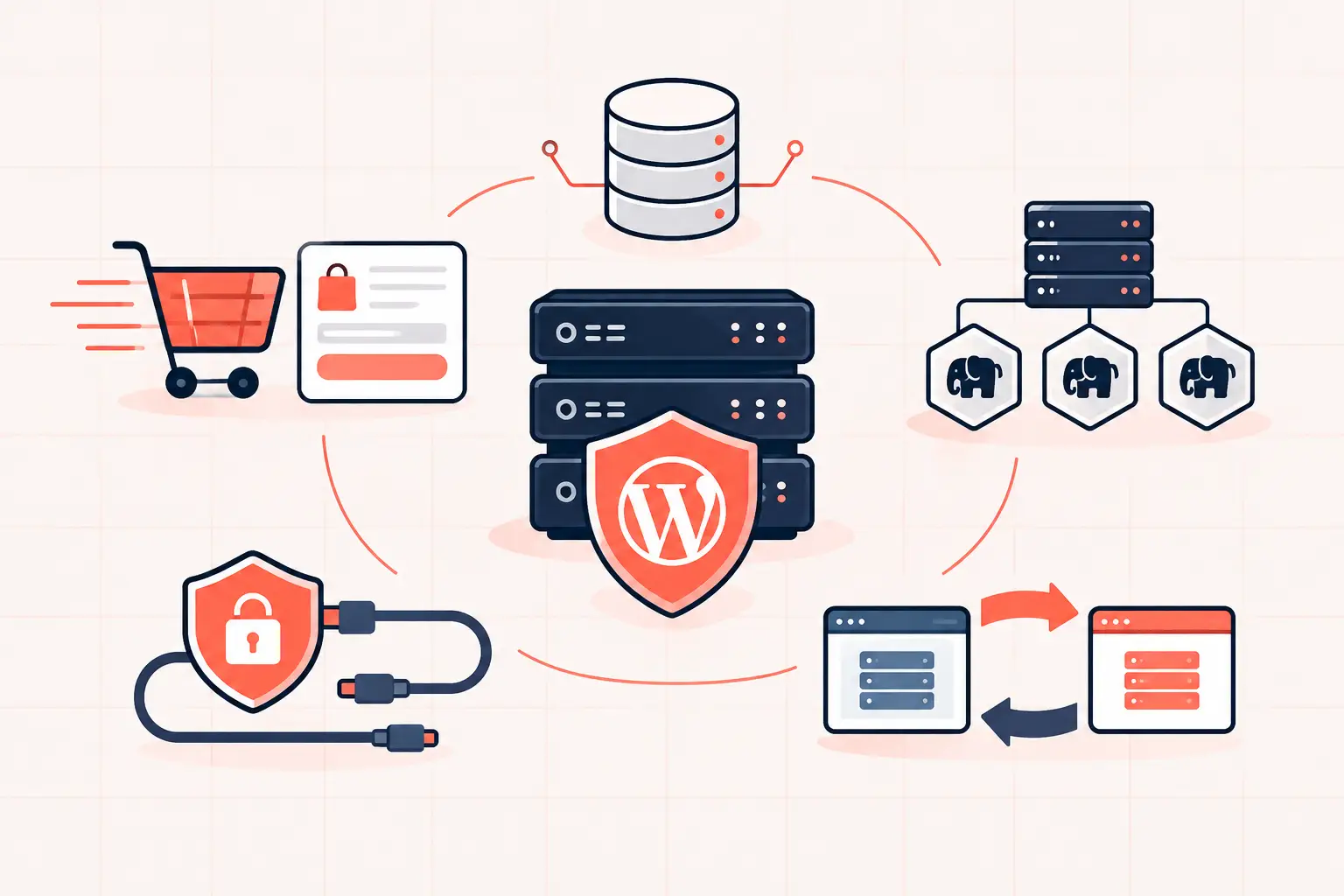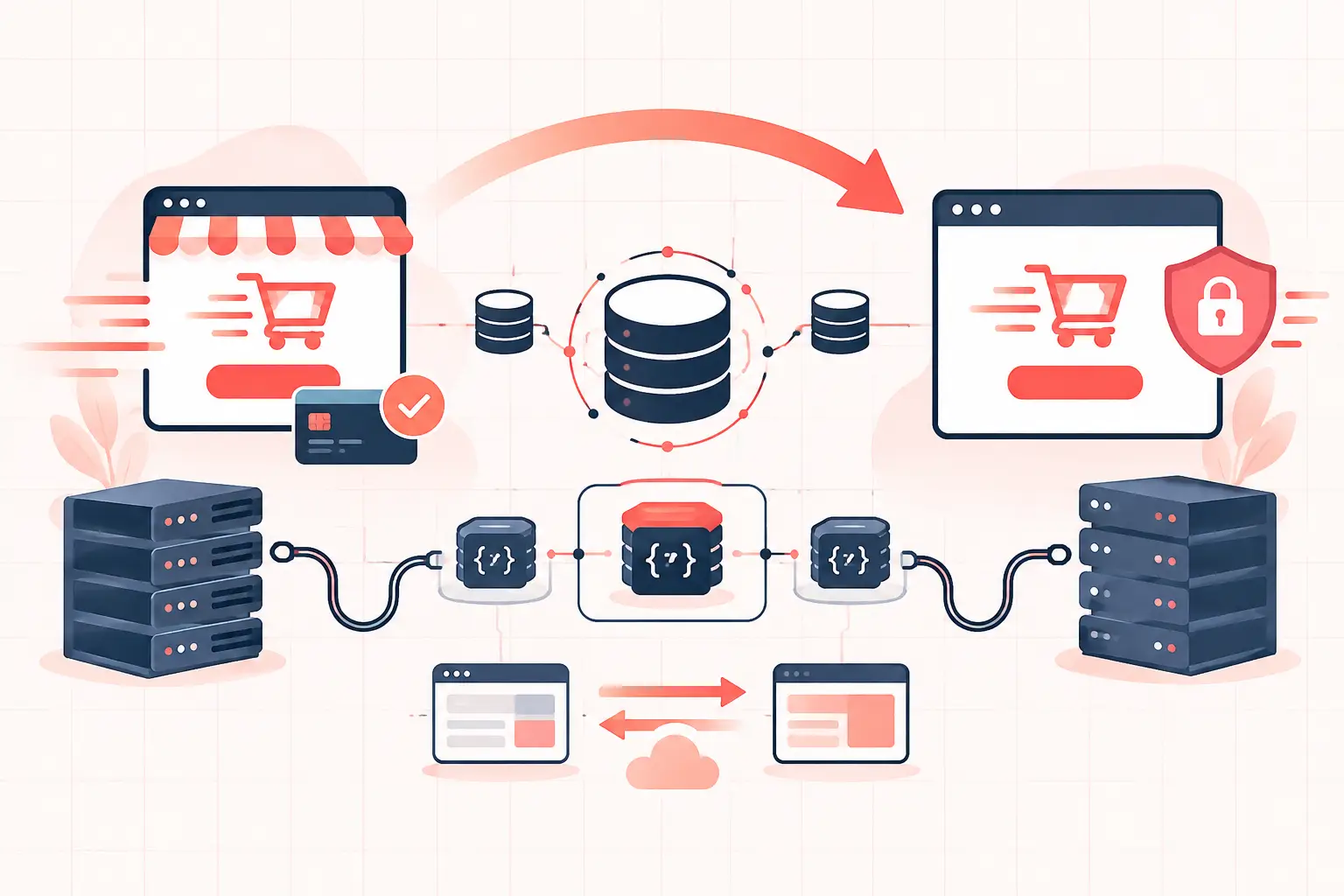
A WooCommerce HPOS migration is safe when you treat it as an order-data change, not a checkbox in WooCommerce settings. The practical sequence is simple: take a verified backup, audit every order-related extension and custom integration, enable synchronization, clear the sync backlog, test real order flows on staging, then make HPOS authoritative. This WooCommerce HPOS migration guide shows where stores usually get into trouble and how to avoid a broken checkout, missing order data, or a painful rollback.
What HPOS changes in WooCommerce
High-Performance Order Storage (HPOS) moves WooCommerce order data away from the overloaded WordPress posts and postmeta tables. Historically, an order was stored as a `shop_order` post, with much of its data spread across `wp_postmeta`. That works, but it becomes expensive on stores with years of orders, large metadata footprints, reporting queries, and busy checkout traffic.
HPOS uses dedicated order tables such as `wp_wc_orders`, `wp_wc_order_addresses`, `wp_wc_order_operational_data`, and `wp_wc_orders_meta`. Your actual table prefix may not be `wp_`. The goal is fewer joins, more useful indexes, and order queries that do not compete as heavily with normal WordPress content queries.
That does not mean HPOS fixes every slow WooCommerce site. A checkout can still be slow because a payment gateway makes remote API calls, PHP workers are saturated, or object caching is missing. But it removes a common database bottleneck and gives WooCommerce a better storage model for stores that are growing.
Step 1: Establish a recovery point first
Do not start by toggling HPOS on production. Capture a database backup and a complete file backup, then confirm you can restore both. An order migration changes authoritative data storage. A backup that exists but has never been tested is not a recovery plan.
Create a staging copy from a recent production backup. For an active store, use a maintenance window for the final production switch, even if customers can continue browsing. You want the shortest possible period in which new orders are being created while you verify synchronization and switch the authoritative source.
If your host provides hourly restore points, use one immediately before the production change. Keep a manual, labeled backup as well. Operationally, those are different safety nets: automated restoration is fast, while a deliberately captured backup is easier to identify when several deployments happen in the same day.
Step 2: Audit extensions and custom order code
The migration itself is usually not the problem. Old code that assumes every order is a row in `wp_posts` is the problem. Review active plugins, mu-plugins, theme functions, custom API integrations, reporting scripts, and agency-built snippets.
Your audit should cover these areas:
- Payment gateways, fraud tools, subscriptions, pre-orders, and deposit plugins
- Fulfillment, shipping, inventory, accounting, and ERP connectors
- Invoice, packing-slip, export, reporting, and order-search extensions
- Custom code that queries `wp_posts`, `wp_postmeta`, or uses `WP_Query` for orders
- External scripts that read or write order data directly in the database
Check each vendor's stated HPOS compatibility and update plugins before testing. “It has not caused an error yet” is not a compatibility check. An extension may work for a basic order but fail when processing a refund, renewal, partial shipment, or payment authorization capture.
For custom development, use WooCommerce order CRUD methods rather than direct post queries. Code should obtain orders with WooCommerce APIs, such as `wc_get_order()`, and read or update data through the `WC_Order` object. Direct writes to either legacy or HPOS tables are a bad long-term design because they bypass WooCommerce validation, hooks, caching behavior, and future schema changes.
A plugin declaring HPOS compatibility does so early in its load process, typically with code like this:
add_action( 'before_woocommerce_init', function() { if ( class_exists( '\\Automattic\\WooCommerce\\Utilities\\FeaturesUtil' ) ) { \\Automattic\\WooCommerce\\Utilities\\FeaturesUtil::declare_compatibility( 'custom_order_tables', __FILE__, true ); } } );That declaration is not proof that the code is safe. It is a statement from the developer. Test the behavior that matters to your store.
Step 3: Update the stack and inspect scheduled actions
Update WordPress, WooCommerce, your active theme, and order-related extensions before migrating. Do not combine this with a major PHP version upgrade, a new payment gateway, or a redesign. When several moving parts change at once, diagnosing a failed checkout gets unnecessarily expensive.
Next, inspect WooCommerce's scheduled actions. HPOS synchronization is processed in the background, so a site with a stalled cron system or a large Action Scheduler backlog can appear to be migrating while order synchronization is barely moving.
A reliable server cron is better than depending entirely on visitor-triggered WordPress cron. On low-traffic stores, WP-Cron may not run promptly. On high-traffic stores, poorly managed background jobs can consume PHP workers needed for checkout requests. Clear unrelated failed actions where appropriate, resolve recurring errors, and verify that scheduled jobs are actually executing before starting the sync.
Step 4: Enable compatibility mode and synchronize data
In WooCommerce, open the Features area under the Advanced settings and locate High-Performance Order Storage. The exact labels can change between WooCommerce releases, but the sequence matters more than the wording.
First, enable compatibility mode so WooCommerce keeps the legacy post-based records and HPOS tables synchronized. Then begin or allow the data synchronization process to run. Existing stores can have a meaningful backlog, particularly when years of orders include large custom metadata records.
Do not switch HPOS to the authoritative data source until the pending synchronization count reaches zero. Check it again after placing staging test orders. A zero backlog before testing proves historical data copied. A zero backlog after testing proves new writes are reaching both storage systems as expected.
During this phase, monitor database load, PHP worker usage, and Action Scheduler throughput. If the store is already near its resource ceiling, background synchronization can worsen checkout latency. This is where infrastructure matters: high-frequency CPU capacity, adequate database resources, persistent object caching, and enough PHP workers reduce contention. They do not replace compatibility testing.
Step 5: Test the order flows customers actually use
A successful migration screen is not a successful store. On staging, run transactions using the same gateways, shipping rules, coupons, tax settings, and order statuses used in production. Use gateway sandbox mode where available, but also verify any gateway behavior that only occurs after a real authorization or webhook.
Test at least these workflows:
- A standard guest checkout and a logged-in customer checkout
- A coupon, taxable product, shipping calculation, and order confirmation email
- Refunds, partial refunds, cancellations, and stock restoration
- Subscription renewals, downloadable products, and order edits if your store uses them
- Fulfillment exports, accounting syncs, invoices, webhooks, and REST API consumers
Check the customer My Account order screen, the WooCommerce order list, analytics reports, and any warehouse or accounting system that consumes orders. Compare order totals, billing and shipping details, line items, notes, metadata, and status changes. A fast admin screen is useful, but data correctness is the pass/fail condition.
Step 6: Switch HPOS authority on production
After staging passes, repeat the backup and plugin-version checks on production. Enable compatibility mode, allow synchronization to finish, and verify that no substantial background-action backlog remains. If your store has steady order volume, do this during the quietest period you can reasonably support.
Once both stores are synchronized, switch HPOS to become authoritative. Keep compatibility mode enabled initially. It provides a fallback path while your team watches live orders, gateway callbacks, fulfillment events, and refund behavior.
For the first day, review several new orders end to end. Check more than the WooCommerce order screen. Confirm the charge exists in the gateway, the customer received the right email, inventory changed, and downstream systems received the order. Pay special attention to asynchronous webhooks, because failures may show up minutes after checkout.
Step 7: Know how to roll back without making data worse
If an extension fails after the switch, do not immediately flip settings repeatedly. First identify whether synchronization is current. A rollback is safest when compatibility mode remains active and the two data stores are fully synced.
With synchronized stores, switch the authoritative source back to legacy storage, keep synchronization active, and isolate the incompatible plugin or custom code on staging. If synchronization has failed or data differs between stores, stop making configuration changes and restore from the verified backup if necessary. Continuing to accept and edit orders while the data stores diverge creates a harder recovery job.
Keep compatibility mode on until every critical extension has survived normal store activity. There is no prize for removing legacy synchronization on day one. Once you have a stable observation period and verified vendors support HPOS, you can plan the final cleanup separately.
Keep the migration from becoming a performance incident
HPOS reduces database pressure, but it should be part of a wider WooCommerce operations plan. Monitor slow database queries, checkout response time, PHP worker saturation, cron execution, and object-cache health before and after the change. If TTFB rises during synchronization, pause and inspect resource contention rather than adding more caching plugins.
At WP Tango, this is the operational distinction we see most often: a clean HPOS migration works best on infrastructure that has room for background work without starving real shoppers. Treat orders as production data, verify each integration, and let evidence from staging decide when production is ready.