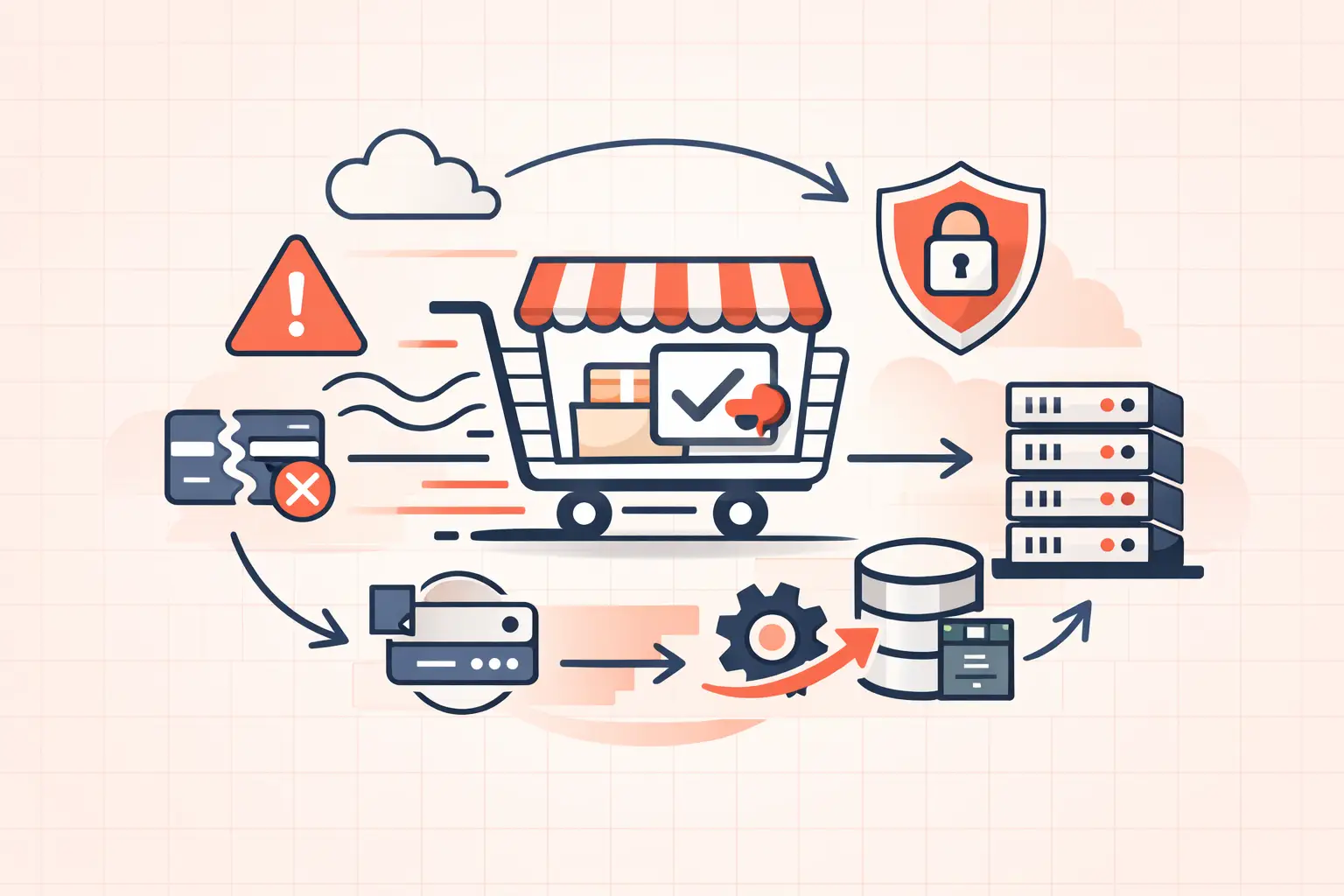
A payment failure is not one problem. It is an event that can fail at several points: the browser, WooCommerce checkout, a gateway API, a webhook callback, or the server processing the request. To fix WooCommerce payment failures quickly, identify the failure point before changing plugins, switching gateways, or asking customers to try again.
Start with the affected order in WooCommerce > Orders and the gateway's transaction record. Compare the order time, amount, customer email, payment method, and error message. If the gateway shows a successful charge but WooCommerce shows a failed or pending order, you likely have a webhook or server-side callback problem. If the gateway never received a request, focus on checkout JavaScript, plugin conflicts, and PHP errors.
Triage the Failed Order Before You Touch Settings
Do not treat every failed order status as a declined card. WooCommerce may set an order to failed because the bank declined it, because the payment gateway rejected the request, or because the site could not complete its own post-payment processing.
Use this quick distinction:
- Gateway decline: The processor received the charge attempt and returned a decline code such as insufficient funds, do not honor, or incorrect CVC.
- Gateway configuration error: The request reached the processor but used invalid API keys, an unsupported currency, an expired token, or a disabled payment method.
- Checkout failure: The customer cannot submit checkout, gets stuck on a spinner, or sees a generic error before the gateway receives anything.
- Webhook failure: The gateway charged the customer, but the WooCommerce order remains pending, failed, or on-hold.
- Server failure: PHP timed out, ran out of memory, hit a worker limit, or encountered a fatal error while creating or updating the order.
A real card decline is usually not your site defect. Repeated generic failures, a sudden spike in failed orders, or successful charges without completed orders are site operations issues and should be treated that way.
Check WooCommerce and Gateway Logs
Go to WooCommerce > Status > Logs and select the log source for the payment gateway. Enable the gateway's debug logging temporarily if it is not already active. Reproduce the failure with a small test order, then immediately review the corresponding log entries.
Look for concrete messages, not vague status labels. Useful clues include `invalid_api_key`, `authentication_required`, `amount_too_small`, `currency_not_supported`, `webhook_signature_verification_failed`, `cURL error 28`, and `Allowed memory size exhausted`.
Also inspect the WordPress debug log. On a staging site or during a tightly controlled troubleshooting window, add the following to `wp-config.php` above the line that says to stop editing:
define( 'WP_DEBUG', true ); define( 'WP_DEBUG_LOG', true ); define( 'WP_DEBUG_DISPLAY', false );This writes PHP notices and fatal errors to `wp-content/debug.log` without displaying them to shoppers. Disable verbose debugging once you have captured the problem. Leaving debug logs enabled indefinitely can expose too much detail and consume disk space.
If your host provides NGINX, PHP-FPM, or application error logs, check the timestamp against the failed order. A 502, 504, upstream timeout, or PHP fatal at that exact moment is stronger evidence than any generic WooCommerce notice.
Fix Checkout Conflicts and Broken JavaScript
When a customer clicks Place Order and nothing happens, inspect the browser console and Network tab. Common errors include blocked JavaScript assets, a failed `wc-ajax=checkout` request, a nonce error, or a JavaScript exception from a theme, optimizer, consent banner, or checkout customization plugin.
Caching tools deserve special attention. Cart, checkout, and My Account pages must not be full-page cached. Do not defer or delay WooCommerce checkout scripts until you have tested every payment method, including express wallets. JavaScript optimization can improve PageSpeed scores while quietly breaking tokenization fields, address validation, or 3D Secure authentication.
The clean test is to use a staging clone and disable nonessential plugins first: optimization plugins, checkout field editors, fraud tools, currency switchers, and page builders. Then test the default Storefront theme or a temporary baseline theme. Re-enable components one at a time. This is slower than guessing, but it produces a defensible answer instead of a pile of unrelated setting changes.
For a live store with meaningful revenue, do not deactivate the payment gateway itself or randomly clear all caches in the middle of peak traffic. Use staging, or schedule a controlled maintenance window.
Verify API Keys, Webhooks, and Payment Method Settings
A surprising number of payment failures come from mixing test and live credentials. Confirm that the WooCommerce gateway is in the intended mode and that its API keys, webhook secret, and account country match the live processor account.
Then verify the webhook endpoint in the payment provider dashboard. The endpoint must be publicly reachable over HTTPS, return a successful response promptly, and receive the events your gateway requires. For card gateways, those usually include payment success, payment failure, refund, dispute, and asynchronous payment updates.
Webhook signature failures often happen after a site migration, a gateway reconnect, or a copied staging configuration. The site may have the old webhook secret while the processor is signing events with a new one. Regenerate or reconnect only after recording the existing configuration, then test with a fresh transaction.
If a security plugin, web application firewall, or CDN blocks the webhook, whitelist the gateway's documented callback traffic using the provider's recommended method. Do not broadly disable your firewall to solve a single endpoint issue. That trades a checkout defect for a security problem.
Resolve Server Timeouts and PHP Worker Contention
Checkout is dynamic. It cannot be served from a normal page cache, and every buyer may trigger multiple requests for cart fragments, address validation, tax calculation, payment tokenization, and the final order submission. Under load, weak infrastructure can turn ordinary checkout activity into queueing delays.
Check the duration of checkout requests in server logs or your application monitoring. A `cURL error 28` means a request timed out, but the slow component may be the payment gateway, DNS resolver, database, another API, or your own PHP queue. Do not raise timeouts blindly. First identify what consumed the time.
PHP worker exhaustion is another common cause. If all PHP-FPM workers are busy with slow uncached requests, new checkout requests wait in line until they time out. This often appears during campaigns, flash sales, or bot traffic spikes. Increasing workers can help, but only if the server has enough CPU and memory. Too many workers on an undersized server can create CPU contention and make every request slower.
Inspect slow database queries as well. Bloated `wp_options` autoload data, abandoned action scheduler tasks, oversized sessions, and expensive product plugins can delay order creation. WooCommerce's scheduled actions should be monitored rather than allowed to accumulate for months.
For stores handling sustained concurrency, server-level object caching and sufficient high-frequency CPU capacity matter more than another front-end optimization plugin. A platform built around fast PHP execution, isolated resources, and real log access gives you a way to diagnose checkout pressure instead of merely hoping it passes. WP Tango's Ryzen 9950X-based environment is designed for that class of dynamic WordPress workload.
Test the Entire Payment Flow After Each Change
A gateway test button is not enough. Run a controlled order through the exact path your customers use: product page, cart, checkout, payment authorization, redirect or 3D Secure challenge if applicable, return to the thank-you page, confirmation email, and order status update.
Test at least one standard card transaction and every alternative method you advertise, such as wallets, buy now pay later, bank transfer, or local payment methods. Each has different callback timing. A configuration that works for cards can still leave asynchronous methods stuck on-hold.
For command-line checks on a staging environment, confirm that WordPress can execute scheduled tasks and that no backlog is growing:
wp action-scheduler list --status=pending --per-page=20 wp cron event list --fields=hook,next_run_relativeIf scheduled actions are overdue, investigate cron reliability, loopback request failures, and server resource limits. Do not simply delete pending actions unless you know what created them and what business process they represent.
Prevent the Next Checkout Incident
Keep gateway plugins, WooCommerce, WordPress core, and your PHP version current, but update them through staging first. Record the gateway account ID, active payment methods, webhook endpoint, and credential rotation date in your operations notes. When a failure occurs at 2 a.m., accurate records beat memory.
Monitor failed-order volume as a ratio of completed orders, not as an isolated count. Ten failures may be normal on a high-volume store, while ten failures in an hour on a store that usually processes twenty orders is a signal to investigate. Pair that metric with server response times and gateway error codes so you can tell whether shoppers, the processor, or the site is actually failing.
The practical goal is not zero failed payments - legitimate bank declines will always exist. The goal is making sure every avoidable failure leaves enough evidence to fix it before it becomes lost revenue.