
A webhook that arrives 10 minutes late can oversell inventory, delay fulfillment, or leave a CRM without a new customer. To optimize WooCommerce webhooks delivery, treat the receiving endpoint and the WordPress server as one transaction pipeline. The immediate fixes are straightforward: make the endpoint return a 2xx response quickly, run WordPress cron reliably, keep PHP workers available, and log every failed delivery with its response code and timing.
Do not start by increasing timeouts. A longer timeout only makes a blocked PHP process wait longer. First identify whether the delay occurs before WooCommerce sends the request, while PHP is processing it, or at the third-party endpoint.
What Actually Slows WooCommerce Webhooks
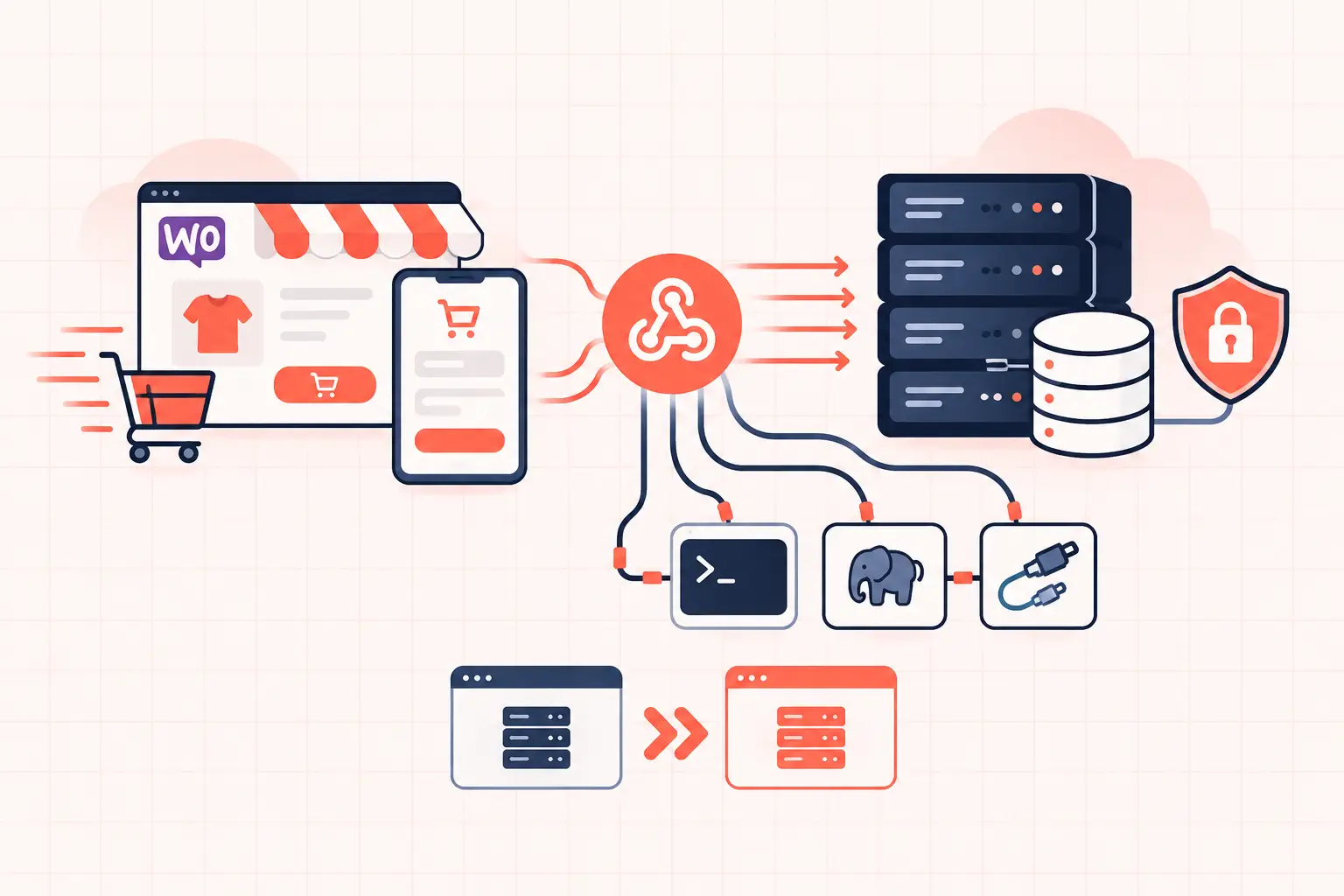
A WooCommerce webhook begins when an event fires, such as an order being created, updated, or refunded. WooCommerce prepares a JSON payload, signs it when a secret is configured, and sends an HTTP POST to the delivery URL. Depending on the event and your WooCommerce configuration, asynchronous processing also depends on scheduled WordPress work being allowed to run.
The failure point is usually one of three places. The first is the WooCommerce site: overloaded PHP workers, slow database queries, a broken cron runner, or outbound HTTP blocked by a firewall. The second is the network path: DNS lookup delays, TLS problems, or an application firewall rejecting the request. The third is the receiver: an endpoint that performs too much work before replying.
A receiver that writes an event to a queue and returns `202 Accepted` in 100 milliseconds is generally safer than one that updates inventory, calls three APIs, and takes eight seconds to respond. The webhook sender only needs proof that the event was accepted. It does not need to wait for downstream business logic to finish.
Optimize WooCommerce Webhooks Delivery at the Endpoint
Start with the endpoint because it is the part you control most directly, even when it belongs to an internal integration rather than a SaaS provider. Measure response time from the WooCommerce server, not from your laptop. A request can be fast from your office and slow from the data center where WordPress runs.
Your receiver should validate the request, persist the raw event or place it in a durable queue, then return a successful response. Process the event after the response. This pattern protects the order flow when a downstream ERP, CRM, warehouse system, or email platform has a temporary problem.
A healthy endpoint should follow these rules:
- Return a 2xx status only after the payload has been durably accepted.
- Verify the WooCommerce signature using the webhook secret before queueing work.
- Make processing idempotent, since delivery retries and duplicate events can occur.
- Record the webhook ID, delivery ID, event type, order ID, received timestamp, and payload hash.
- Respond with a clear 4xx status for invalid requests and a 5xx status only for temporary server failures.
Idempotency matters more than most stores expect. For example, a payment-completed event may be delivered again after a timeout even if the receiving application processed it the first time. Use a unique delivery identifier or a combination of webhook event data and order ID to detect duplicates before creating another shipment or CRM record.
Do not disable SSL verification to work around certificate errors. Fix the certificate chain, hostname, or server clock instead. Skipping verification turns a delivery problem into a data exposure problem.
Verify the signature before trusting the payload
WooCommerce includes an `X-WC-Webhook-Signature` header when the webhook has a secret. The receiving application should compute an HMAC SHA-256 hash of the raw request body using that secret, then compare it to the header using a timing-safe comparison.
Do this against the untouched raw body. Parsing JSON and then re-encoding it can change whitespace or key ordering, producing a different hash. If a provider cannot verify the signature, do not assume the webhook is authentic just because it came from a familiar IP address. IP ranges change, proxies exist, and allowlists are not an identity check.
Keep WordPress Scheduled Work Running
WooCommerce can only dispatch background work when WordPress scheduled tasks get CPU time. On low-traffic stores, relying solely on visitor-triggered WP-Cron is risky. No visit means no cron trigger, which can delay webhook-related background events along with subscription renewals, stock tasks, and scheduled actions.
Disable the visitor-triggered cron mechanism in `wp-config.php`:
define( 'DISABLE_WP_CRON', true );Then add a real system cron job that calls WordPress on a predictable interval. A typical command looks like this:
/1 * /usr/bin/php /path/to/public_html/wp-cron.php >/dev/null 2>&1One-minute execution is appropriate for an active WooCommerce store. If the site has significant scheduled workload, use a managed cron runner or WP-CLI where available and confirm jobs do not overlap uncontrollably. Running cron every minute will not fix a queue that takes five minutes to clear because PHP is saturated.
Check the WooCommerce scheduled actions screen for overdue or repeatedly failed actions. A growing backlog points to a worker capacity problem, a fatal error in a plugin callback, or a cron process that is not actually executing. Treat backlog size as an operations metric, not a cosmetic warning.
Protect PHP Workers and Database Capacity
Webhook delivery competes with checkout, account pages, payment callbacks, and WordPress admin requests for the same PHP workers. That is why a store can look fast in a cached homepage test while integrations fail during a promotion. Checkout and webhook requests are dynamic. Full-page caching does not rescue them.
Inspect PHP-FPM worker utilization during the affected period. If all workers are busy, new webhook requests wait in line. Raising `pm.max_children` blindly can make matters worse by exhausting RAM or overwhelming MySQL. Set worker capacity from actual memory use per PHP process, then load test the checkout and webhook mix together.
Also look for slow queries triggered by order updates. Large `wp_postmeta` tables, inefficient order-reporting plugins, and autoloaded option bloat can turn a simple order status event into a slow database operation. Stores using High-Performance Order Storage should still audit custom code and extensions that perform repeated order-meta reads.
Persistent object caching can reduce repeated query pressure, but it is not a substitute for fixing expensive queries. Redis helps when cache keys are used well. It does not make an external API respond faster or repair a plugin that runs a table scan on every order update.
High-frequency CPU capacity matters here because dynamic WooCommerce work is latency-sensitive. A properly sized environment on modern hardware, such as AMD Ryzen 9950X-based infrastructure, gives PHP requests more headroom under concurrency. But CPU speed cannot compensate for a receiving endpoint that blocks for 30 seconds.
Use Logs to Separate Retries From Root Cause
Open the webhook's delivery history in WooCommerce and inspect the response status, response body, and duration for failed attempts. A pattern tells you where to investigate:
| Symptom | Likely cause | First check |
|---|---|---|
| 401 or 403 response | Authentication, WAF, or signature rejection | Receiver logs and firewall rules |
| 404 response | Wrong delivery URL or deployment change | Webhook URL and route availability |
| 429 response | Receiver rate limit | Queueing strategy and provider limits |
| 500 or 503 response | Receiver outage or application failure | Application error logs |
| Long duration then timeout | Slow endpoint, DNS, or PHP worker contention | Timing logs on both systems |
| No recent delivery attempt | Cron or event registration problem | Scheduled actions and WordPress logs |
Enable WordPress debugging to a log file temporarily when you suspect a plugin conflict, but do not display errors to customers. The relevant `wp-config.php` settings are:
define( 'WP_DEBUG', true ); define( 'WP_DEBUG_LOG', true ); define( 'WP_DEBUG_DISPLAY', false );Review `wp-content/debug.log`, PHP-FPM logs, web server error logs, and the receiver's application logs against the same timestamp. Time synchronization matters. If one server is five minutes off, a simple incident becomes needlessly confusing.
Test outbound connectivity from the WordPress host as well. DNS failures, blocked outbound port 443 traffic, and CA bundle problems often appear as generic HTTP errors in WooCommerce. A command-line request from the server can expose the real TLS or name-resolution failure, but never paste production webhook secrets into a shared terminal history.
Avoid Common Fixes That Create New Failures
Do not send every WooCommerce event to one endpoint without filtering. A busy store can generate many updates for the same order, especially when inventory, fulfillment, subscriptions, and custom status plugins are involved. Subscribe only to events the integration truly needs.
Do not make webhook delivery synchronous through custom code merely to get immediate confirmation. That ties order creation or status updates to a remote dependency. If the remote system slows down, your customer-facing checkout can slow down with it.
Finally, test in staging with representative payloads, but validate the production network path after deployment. Staging often has different DNS, firewall, credentials, queues, and traffic levels. Keep a monitored test webhook for controlled checks, and make failed-delivery alerts actionable. The goal is not zero retries forever. The goal is a delivery path that absorbs ordinary failures without putting orders, inventory, or customers at risk.