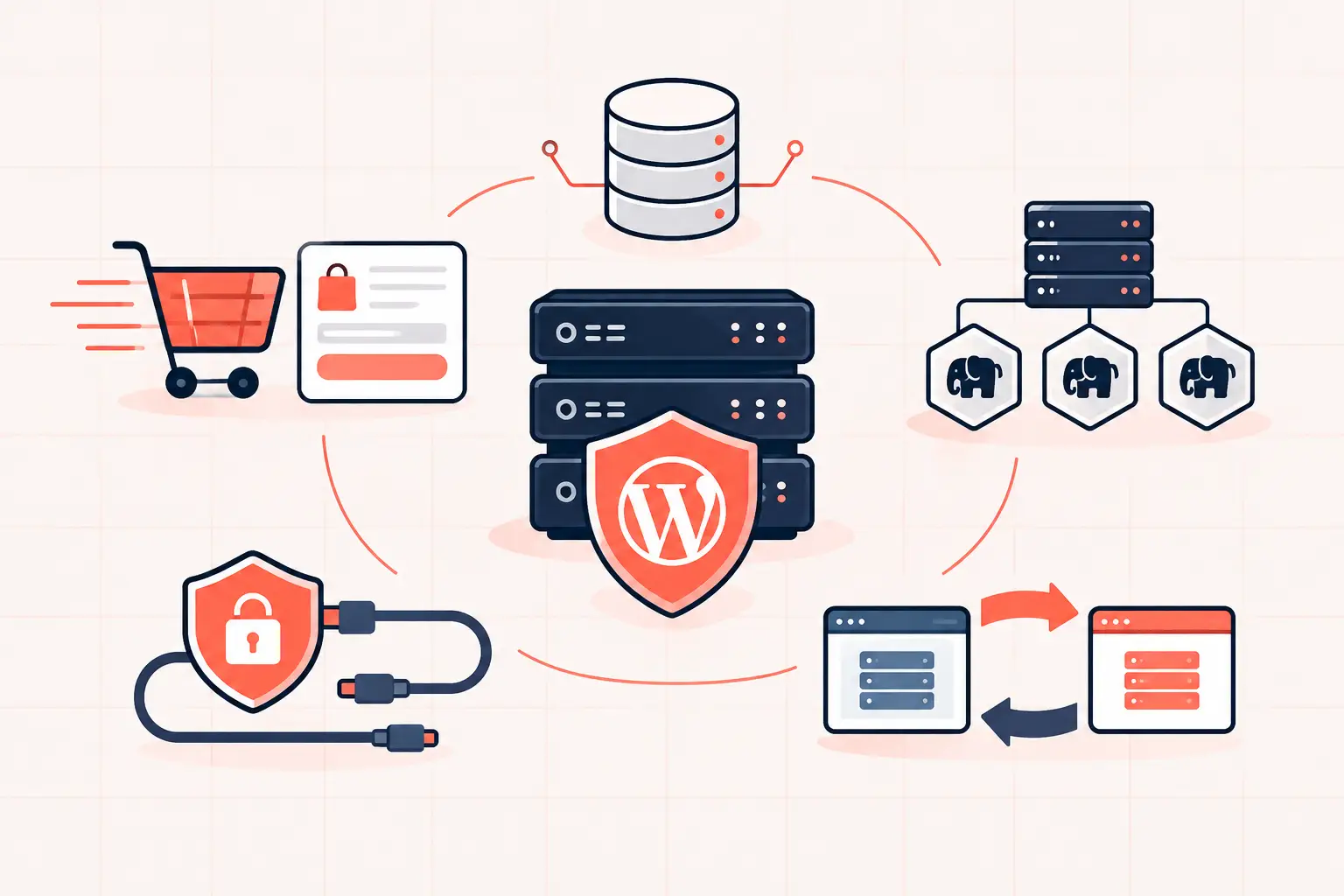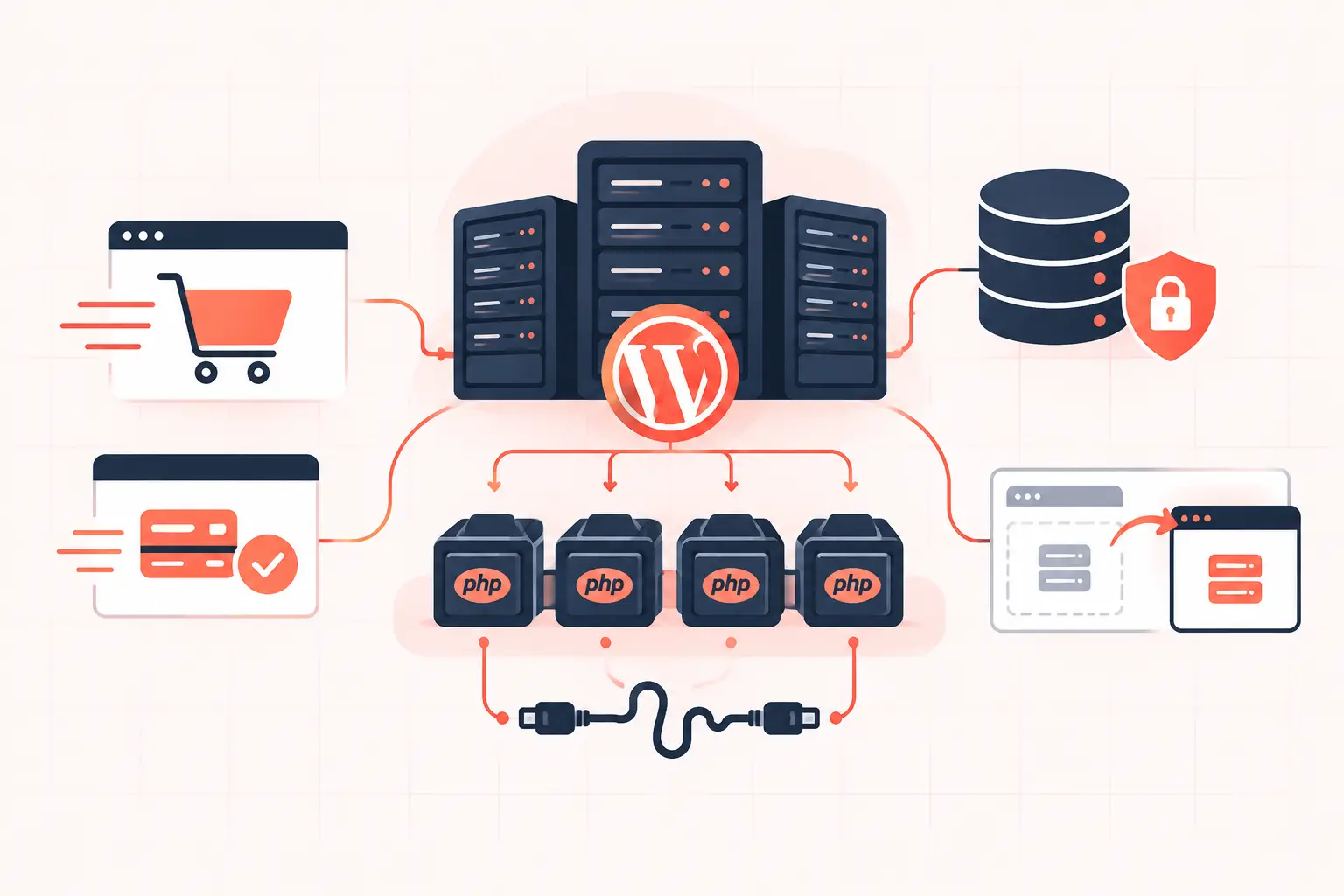
A PHP worker is not a speed setting. It is a concurrency limit for uncached WordPress requests. To tune PHP workers correctly, measure whether requests are queuing, how much memory each PHP-FPM process actually uses, and whether the database or external APIs are the real bottleneck. Raising `pm.max_children` without those numbers can trade a visible queue for memory exhaustion, database contention, and slower checkouts.
For most WordPress sites, start by finding `max children reached`, the PHP-FPM listen queue, average worker memory, CPU saturation, and slow PHP requests. Then increase capacity in small increments, load test the routes that bypass cache, and retest. Product pages served from full-page cache are not the workload that usually breaks a store. Cart, checkout, account, REST API, admin, webhooks, and `admin-ajax.php` are.
What PHP workers actually do
On a typical NGINX or LiteSpeed stack using PHP-FPM, each active dynamic request needs a PHP worker. A worker runs WordPress core, plugins, theme code, database queries, and any outbound calls made during that request. Once it finishes, the worker becomes available for the next request.
If all workers are busy, PHP-FPM queues new requests. A short queue during a brief traffic burst is not automatically a problem. A persistent queue is. Visitors then wait before WordPress even starts processing their request, which raises TTFB and can make WooCommerce checkout requests time out.
More workers are useful only when the server has spare memory and CPU, and when the application can process extra concurrent work efficiently. If every worker is waiting on slow MySQL queries or an inventory API, adding 20 more workers simply creates 20 more requests competing for the same bottleneck.
How to tune PHP workers with real limits
The primary PHP-FPM control is `pm.max_children`. It sets the maximum number of simultaneously running PHP processes in a pool. The right value is constrained by memory first, then validated against CPU and application behavior.
Use this planning formula as a starting point:
safe PHP workers = memory available to PHP-FPM / measured average worker memoryDo not use the server's total RAM as the numerator. Reserve memory for the operating system, MySQL or MariaDB, Redis, NGINX, filesystem cache, monitoring agents, and traffic spikes. On a server with 16 GB RAM, it may be reasonable to reserve 8 GB or more before calculating PHP capacity, depending on the database workload.
For example, if PHP-FPM has a conservative 4 GB budget and a busy WordPress worker consumes 140 MB on average, memory suggests roughly 29 workers. That is a ceiling to test, not a number to deploy blindly. A store with eight CPU cores may perform better with 12 to 20 workers if checkout requests are CPU-heavy or the database is already near saturation.
Worker memory also varies by request. A cached-looking frontend request may use far less memory than an Elementor editor save, a WooCommerce order export, an image-processing task, or a plugin performing a large `WP_Query`. Measure during normal traffic and during the heaviest operational tasks.
Check PHP-FPM status before changing limits
Enable the PHP-FPM status page on an internal-only location. The exact pool file differs by distribution, but the relevant setting is commonly:
pm.status_path = /fpm-statusExpose it only to localhost, a private network, or authenticated monitoring. Never leave a PHP-FPM status endpoint publicly accessible.
The status output provides the numbers that matter:
| Metric | What it means | What to do |
|---|---|---|
listen queue | Requests waiting for a worker right now | Investigate if it persists during normal load |
max listen queue | Highest observed queue since restart | Compare it with traffic and error periods |
max children reached | PHP-FPM hit its configured ceiling | Confirm memory and CPU before increasing workers |
active processes | Workers currently handling requests | Useful when compared with CPU and request latency |
idle processes | Ready workers | Too many constantly idle workers can waste RAM |
A `max children reached` message is a signal, not an instruction to double the limit. Check the PHP-FPM error log and correlate the event with CPU load, free memory, database latency, and request types. If CPU is pegged and workers are all active, more workers will usually make response times worse.
Measure actual PHP worker memory
On Linux, inspect PHP-FPM processes while the site is busy:
ps -o pid,rss,cmd -C php-fpm --sort=-rssRSS is shown in kilobytes. Sample it more than once and include workers handling real checkout, admin, API, and scheduled-job traffic. Treat the high normal range as more useful than the smallest process in the list.
Be careful with simplistic memory calculations. PHP processes can share opcode cache memory, and container limits or cgroup accounting may differ from what a basic process view suggests. If the server has experienced swap activity, out-of-memory kills, or MySQL crashes under load, reduce the worker ceiling and investigate before adding capacity.
Choose the right PHP-FPM process manager
For WordPress, `dynamic` is commonly the right default on active production sites. It keeps a baseline of ready workers while allowing the pool to grow under demand.
pm = dynamic pm.max_children = 16 pm.start_servers = 4 pm.min_spare_servers = 4 pm.max_spare_servers = 8 pm.max_requests = 500The values above are an example, not a recommended universal configuration. `pm.max_requests` recycles workers after a number of requests. It can limit the impact of memory leaks in poorly behaved plugin code, though setting it extremely low adds needless process churn.
Use `ondemand` when traffic is low or highly intermittent and conserving idle memory matters more than first-request latency. It can work well for a small brochure site. It is less attractive for a busy WooCommerce store, where workers may need to spawn during a checkout burst.
Use `static` only when you have measured, stable demand and intentionally reserve capacity. It starts every configured worker immediately, which makes it predictable but can waste significant RAM on sites with uneven traffic.
Find slow requests before adding workers
A large PHP pool can hide bad code briefly. It cannot fix it. Enable the PHP-FPM slow log to capture stack traces for requests that exceed a realistic threshold:
request_slowlog_timeout = 5s slowlog = /var/log/php-fpm/www-slow.log request_terminate_timeout = 120sA five-second threshold is a reasonable starting point for many sites, but tune it to the application. Checkout should normally be much faster than five seconds. A long-running import may legitimately need longer, but it should not share the same pool and timeout policy as public web traffic.
Slow logs often reveal the real cause: expensive WooCommerce cart calculations, a plugin querying post meta without appropriate indexes, remote license checks, blocked HTTP calls, or cron jobs running during user requests. Fixing one repeated slow query can produce a larger gain than adding dozens of PHP workers.
WordPress cron deserves special attention. The default pseudo-cron runs when visitors load the site, meaning scheduled tasks can consume a valuable PHP worker during a customer request. For stores and high-traffic sites, disable the built-in trigger in `wp-config.php` and run the scheduler from the system instead:
define('DISABLE_WP_CRON', true);Then configure a real server cron job to call `wp-cron.php` on an appropriate schedule. Also inspect WooCommerce Action Scheduler queues. Large backlogs, subscription renewals, feeds, and bulk imports can overwhelm the same worker pool that serves checkout.
Test the non-cacheable paths that matter
After every worker adjustment, test with a controlled load profile. Do not judge the change by a single homepage refresh or a PageSpeed score. Full-page cache can make the homepage look excellent while logged-in users and customers are waiting in a PHP queue.
Test a mix of uncached pages: add to cart, cart updates, checkout, account login, product search, REST requests, and wp-admin actions used by staff. Track p95 response time, error rate, queue depth, CPU, memory, database connections, and slow-log entries. The p95 figure matters because the slowest five percent of requests are where worker contention becomes visible to paying customers.
Increase `pm.max_children` in small steps, such as two to four workers at a time. If queue depth drops and p95 latency improves without CPU, memory, or database pressure rising sharply, the increase was useful. If CPU climbs, MySQL latency worsens, or checkout slows despite a shorter queue, step back and address the downstream constraint.
Worker tuning needs infrastructure headroom
PHP worker tuning is more forgiving on fast hardware, but hardware does not exempt a site from application discipline. High-frequency CPUs, sufficient RAM, server-level object caching, and a properly sized database all reduce the time each worker stays occupied. That increases useful throughput without blindly raising concurrency.
This is one reason managed infrastructure should show real limits rather than selling an arbitrary worker count as a performance guarantee. On platforms such as WP Tango, dedicated AMD Ryzen 9950X resources and server-level caching provide useful headroom, but the same operational rule still applies: measure the queue, profile slow requests, and protect the database.
The best PHP worker setting is the one that keeps important uncached requests moving while leaving enough capacity for the rest of the stack to breathe. When checkout traffic rises, a controlled queue is far safer than a server that accepts unlimited work and falls over all at once.