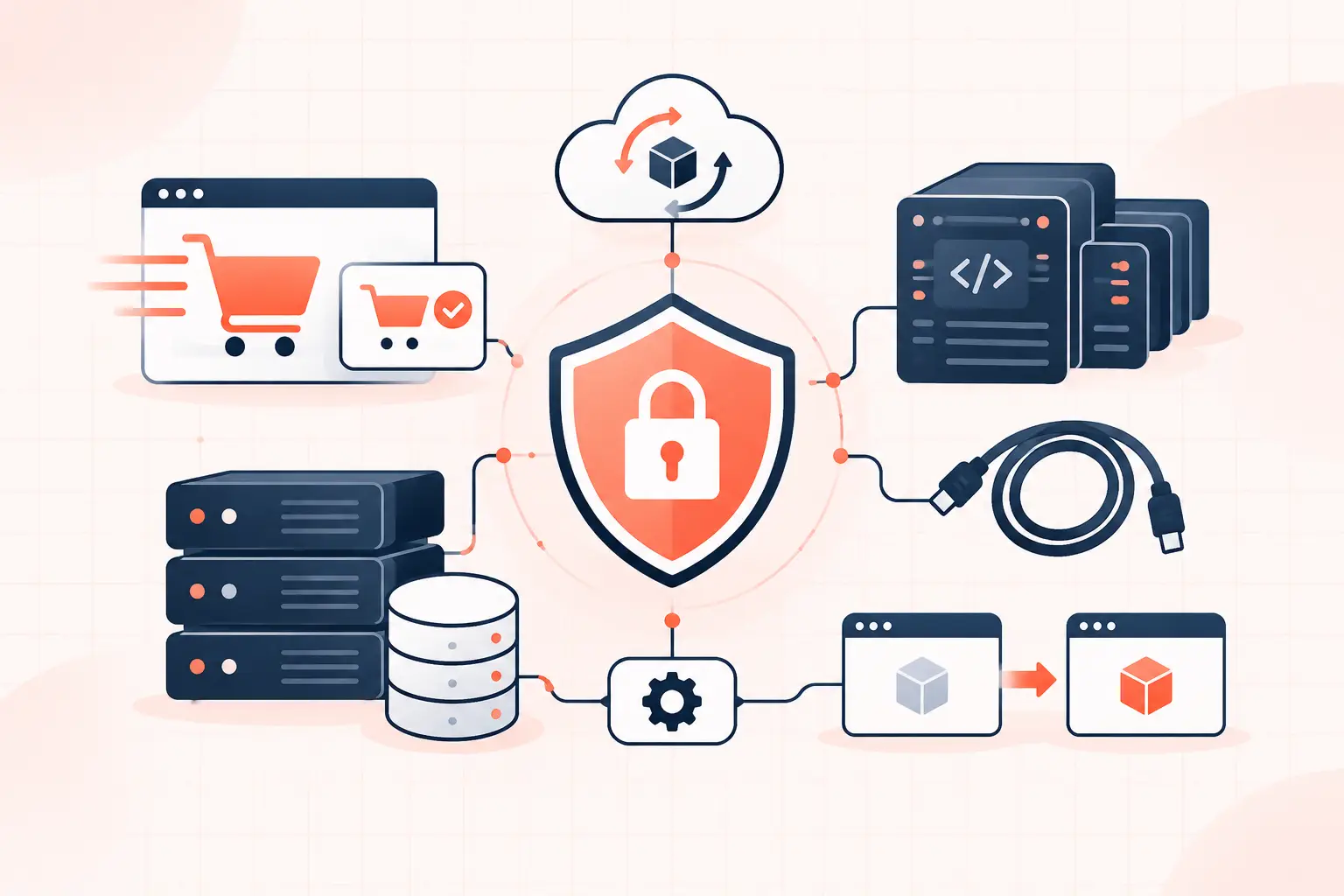
A WordPress server hardening guide should reduce the paths an attacker can use without taking down checkout, wp-admin, cron, or legitimate integrations. Start with the controls that matter most: patch the operating system and WordPress stack, remove shared administrative access, isolate each site at the PHP level, prevent PHP execution in uploads, protect secrets, and test restores. Security plugins can help at the application layer, but they cannot fix a poorly configured server, exposed SSH access, or a compromised backup system.
| Layer | Control | What to verify |
|---|---|---|
| Server access | SSH keys, least privilege, MFA where available | No shared root logins or stale users |
| Web server | Block sensitive files and upload PHP execution | NGINX rules return 403 as expected |
| PHP | Per-site pools and current supported versions | One compromised site cannot read another |
| Recovery | Off-server, tested backups | A restore works before an incident |
1. Inventory the server before changing it
Hardening starts with knowing what is actually running. List every WordPress installation, system user, PHP version, scheduled task, open port, administrator account, and third-party integration. Agencies regularly inherit servers with old staging copies, forgotten subdomains, and abandoned plugins that are more exposed than the production site.
Apply operating system security updates and move WordPress, plugins, themes, PHP, MySQL or MariaDB, and the web server onto supported releases. Do not treat a major PHP upgrade as a routine patch. Clone the site to staging, run checkout and login tests, inspect error logs, then schedule production deployment. An unpatched server is a known risk; an untested upgrade can be an outage. You need to manage both.
Use a firewall with a default-deny posture for inbound traffic. Most WordPress servers need public access only to ports 80 and 443. SSH should be restricted to known office, VPN, or management IP ranges where practical. Database ports should not be publicly reachable. If a remote service truly needs database access, use a private network or a tightly restricted allowlist instead of opening MySQL to the internet.
2. Lock down administrator and SSH access
Root should not be the daily login account. Create named administrative users, grant only the privileges each person needs, and use `sudo` for elevated work. Disable password-based SSH after confirming key-based access works for at least two trusted administrators. One lost laptop should not become a locked-out production server.
Review access after employee departures, agency handoffs, and developer changes. Remove old SSH keys, hosting-panel accounts, WordPress administrators, and API credentials. This is basic operational hygiene, but it is often the gap attackers use because it leaves no dramatic vulnerability to patch.
For WordPress itself, require strong unique passwords and enable two-factor authentication for administrators. Limit the number of administrator accounts. A store manager who needs to process orders does not need plugin installation privileges, and a freelance designer does not need permanent production access.
3. Isolate sites instead of treating the server as one trust zone
A multi-site server is not secure merely because each domain has a separate directory. If every virtual host runs PHP as the same Unix user, a vulnerable plugin on one low-value site may be able to read configuration files, session data, or writable files belonging to another.
Run each WordPress installation in its own system account and PHP-FPM pool. Give each pool its own socket, process limits, and file ownership. This also improves incident containment: a runaway import, compromised plugin, or WooCommerce traffic spike on one site is less likely to consume every available PHP worker.
File permissions should follow ownership, not panic-driven `chmod 777` fixes. As a common baseline, directories are `755`, files are `644`, and `wp-config.php` is `640` or more restrictive when the PHP-FPM user and group are configured correctly. The exact mode depends on your web server user, deployment workflow, and control panel. Test updates and media uploads after any ownership change.
4. Apply web server rules that block common exposure
The web server should deny direct access to configuration files, environment files, source-control directories, and other sensitive artifacts. It should also block PHP execution from the uploads directory. WordPress media uploads should be images, documents, and other assets, not executable code.
For NGINX, a starting point looks like this:
location ~ /(?:wp-content/uploads|wp-content/files)/.\.php$ { deny all; }

location ~* /(wp-config\.php|\.env|composer\.(json|lock)|\.git) { deny all; }

location ~ /\.(?!well-known/) { deny all; }
Test these rules on staging first. Custom upload paths, multisite installations, and plugins that improperly store executable files may need a more specific rule. The correct response is usually to fix the plugin behavior, not to leave PHP execution open in uploads because it is convenient.
Disable directory listing and ensure the document root points only to the public WordPress directory. A deployment directory, backup archive, database dump, or `.git` folder should never be web-accessible. Also verify that temporary files and server logs are outside the document root.
5. Harden WordPress configuration and secrets
Keep `wp-config.php` out of version control and restrict who can read it. It contains database credentials, authentication salts, and often third-party keys. If credentials have ever appeared in a public repository, ticket attachment, or compromised backup, rotate them. Assume copied secrets remain copied.
Add this setting to prevent administrators from editing theme and plugin files in wp-admin:
define('DISALLOW_FILE_EDIT', true);This does not stop a server-level attacker, and it does not replace proper user permissions. It does remove a common way a stolen WordPress administrator session becomes persistent PHP malware.
Treat database credentials separately for every site. Do not reuse the same database user and password across a server. Grant the WordPress database user only the privileges it needs on its own database. Avoid using the database root account in application configuration.
6. Keep PHP and background work from becoming an attack amplifier
Use a supported PHP version and disable dangerous functions only after checking your plugins, deployment tooling, and image-processing workflow. Blanket function disable lists often break legitimate operations while giving a false sense of safety. Process isolation, least privilege, patched code, and no executable uploads provide more dependable protection.
Set realistic PHP-FPM limits per site. Too many workers can exhaust RAM and trigger swapping, which turns a traffic burst into high TTFB and failed requests. Too few workers can make WooCommerce checkout queues stall. Measure actual memory usage, slow logs, queue depth, and response time rather than copying a generic worker count from a blog post.
Move WordPress cron processing away from visitor requests on busy sites. Disable page-triggered cron only after adding a real system scheduler or managed equivalent. Then monitor job completion. Missed subscription renewals, delayed inventory updates, and unsent transactional emails are security and revenue problems when nobody notices them.
7. Rate-limit abuse without breaking legitimate services
A web application firewall and rate limits are useful, especially for login attempts, XML-RPC abuse, malformed requests, and bot traffic that burns PHP workers. They are not permission to ignore vulnerable plugins. Put controls in front of WordPress so abusive requests are rejected before they reach PHP and MySQL.
Do not blindly disable XML-RPC or the REST API. Some mobile apps, publishing tools, WooCommerce extensions, and remote-management services depend on them. First identify whether the site uses the endpoint. If it does not, restrict it. If it does, rate-limit sensitive methods and monitor rejected requests. The same applies to `wp-login.php`: protect it aggressively, but ensure legitimate administrators can still sign in during an incident.
8. Make backups resistant to the same failure
A backup stored only on the production server is not a recovery plan. Ransomware, accidental deletion, a compromised hosting account, or a failed disk can take the site and its backups together. Keep encrypted copies off-server, retain multiple restore points, and protect backup storage with separate credentials and access controls.
Test a full restore on a non-public staging environment. Confirm that the database, uploads, plugins, themes, and configuration are present, then test login, forms, checkout, and scheduled actions. Automated hourly backups are valuable for busy stores, but only if restoration is fast, documented, and proven.
9. Monitor the signals that show compromise early
Security monitoring should include failed logins, new administrator accounts, changed core files, unexpected PHP files in uploads, unusual outbound mail, repeated 404 scans, CPU spikes, and database connection failures. Centralize logs where possible so an attacker who gains server access cannot simply erase local evidence.
Have a short incident runbook: isolate the affected site, preserve logs and a snapshot, rotate credentials, identify the initial entry point, remove persistence, patch the cause, and restore only known-clean data. Reinstalling WordPress without finding the vulnerable plugin or leaked credential invites a repeat incident.
The useful standard is not whether a server looks secure on a checklist. It is whether one bad plugin, one stolen password, or one failed update can be contained and recovered from without turning into a business-wide outage. That is the operating discipline WP Tango is built to support.