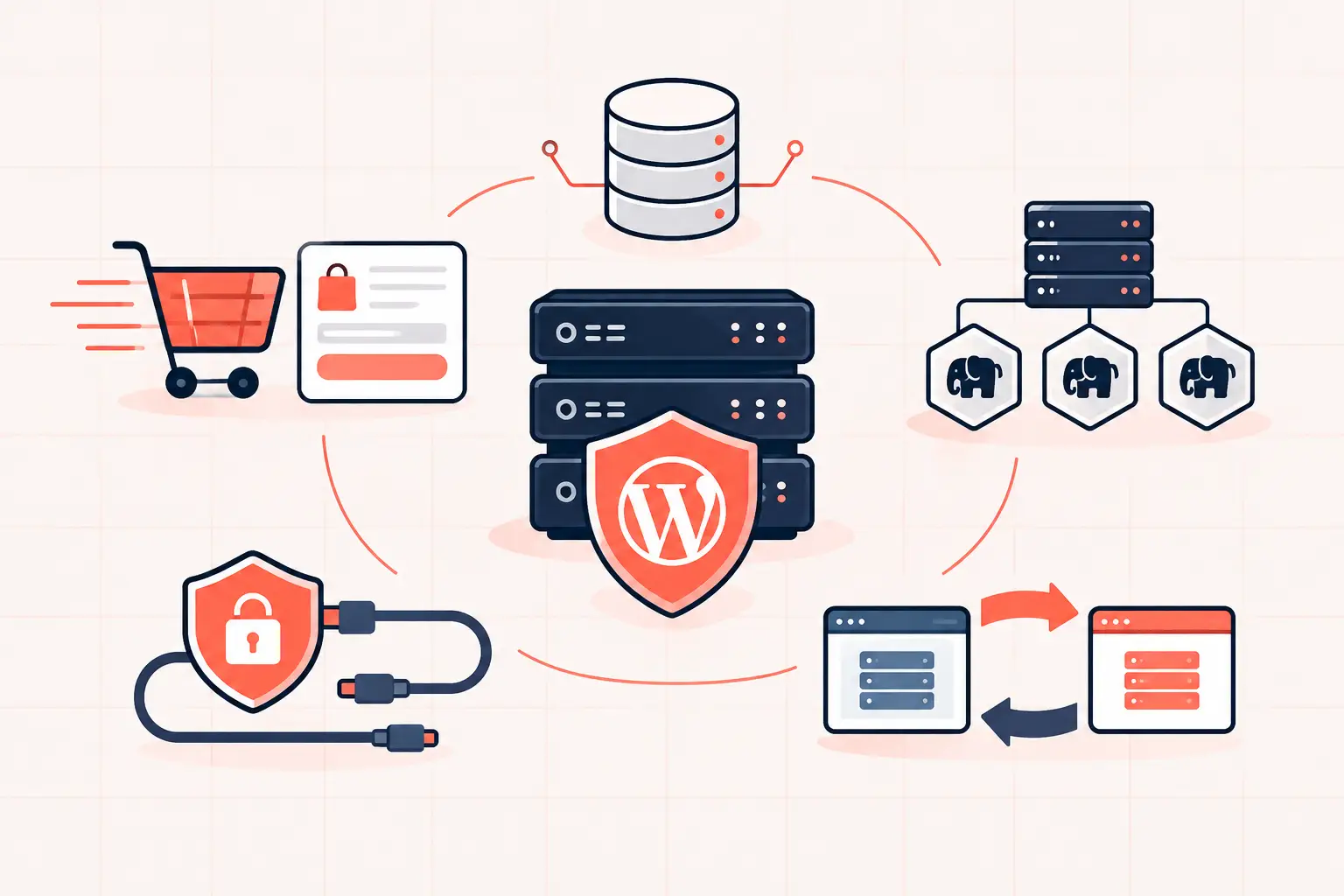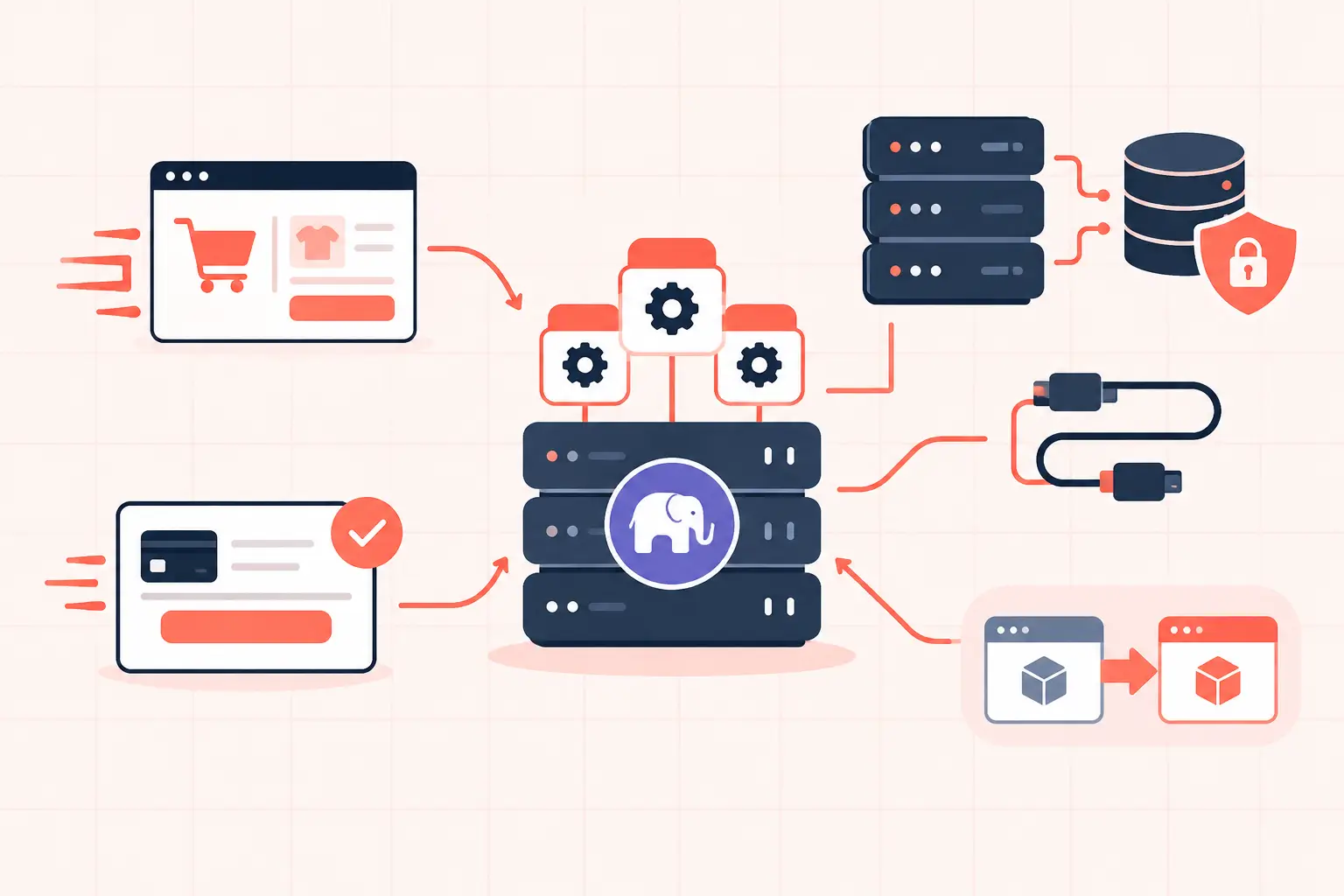
PHP worker bottlenecks occur when more uncached WordPress requests arrive than PHP-FPM can process at once. The visible symptom is usually a rising TTFB, intermittent 504 errors, or a WooCommerce checkout that becomes painfully slow during traffic spikes. Adding workers can help, but only after you identify what is holding each worker open. A slow database query, blocked third-party API call, heavy plugin task, or insufficient CPU can make a larger worker pool worse.
The immediate check is simple: inspect PHP-FPM's active processes, queue length, and slow-request log while the site is slow. If requests are waiting in the queue and workers are busy, you have contention. If workers are mostly idle, the bottleneck is elsewhere - often NGINX, MySQL, upstream APIs, or a network issue.
What PHP Workers Actually Do
A PHP worker is a PHP-FPM process assigned to execute one dynamic request. On a typical WordPress site, cached public pages should rarely need a worker at all. NGINX or a full-page cache can serve those requests before PHP starts.
Workers handle the requests cache cannot safely serve: logged-in sessions, `/wp-admin/`, cart and checkout requests, form submissions, REST API calls, webhooks, cron jobs, and cache misses. Each request consumes one worker until its PHP code, database queries, and external calls finish.
That distinction matters for capacity planning. Ten PHP workers do not mean ten times more traffic. They mean ten concurrent uncached requests. If a checkout request takes 800 milliseconds, ten workers can theoretically complete far more work than if the same request takes eight seconds. Reducing request time is usually the better fix.
Signs of PHP Worker Bottlenecks
Do not diagnose this from a dashboard CPU graph alone. PHP-FPM exposes the useful evidence through its status page. Protect that endpoint from public access and review it during an active slowdown.
The fields that matter are `active processes`, `idle processes`, `max active processes`, `max children reached`, and `listen queue`. A nonzero listen queue means requests are waiting for a worker. A growing queue paired with `max children reached` is direct evidence that the pool is saturated.
You may also see these symptoms:
- NGINX reports 502 or 504 errors while traffic is elevated.
- TTFB rises sharply on cart, checkout, account, and admin URLs but cached pages remain fast.
- PHP-FPM logs report that the server reached `pm.max_children`.
- CPU is busy, memory is under pressure, or MySQL slow queries increase at the same time.
A queue without high CPU has a different meaning than a queue with 95% CPU utilization. In the first case, workers may be blocked on slow I/O, database locks, or remote calls. In the second, the server may simply lack CPU time for the work being asked of it.
Measure Before Raising the Worker Limit
Start with PHP-FPM logs and the pool configuration. Common PHP-FPM pool settings look like this:
pm = dynamic pm.max_children = 12 pm.start_servers = 3 pm.min_spare_servers = 2 pm.max_spare_servers = 6 request_slowlog_timeout = 5s slowlog = /var/log/php-fpm/www-slow.log request_terminate_timeout = 120s`pm.max_children` is the hard concurrency ceiling. The slow log is more valuable than guesswork because it captures PHP stack traces for requests exceeding the threshold. A slow trace can quickly expose an expensive plugin hook, a loop of database calls, an image operation, or a remote HTTP request that is tying up workers.
For live inspection, the exact commands and service names vary by distribution, but these patterns are useful:
systemctl status php8.3-fpm journalctl -u php8.3-fpm --since "15 minutes ago" tail -f /var/log/php-fpm/www-slow.logAlso inspect access logs by response time and URL. A slow `/wp-admin/admin-ajax.php` endpoint is not the same problem as slow product pages. Grouping slow requests by path, status code, upstream response time, and user agent prevents you from treating every PHP spike as a traffic problem.
For WordPress-specific checks, identify whether scheduled jobs are piling up:
wp cron event list --due-now wp cron event run --due-nowRun those commands from the WordPress install as the correct system user. If a task is slow or fails repeatedly, fix the responsible plugin or schedule it through a real system cron. Letting visitor requests trigger a backlog through WP-Cron is an avoidable way to consume PHP capacity.
Find What Is Holding Workers Open
Slow database work
WordPress can make many small queries quickly. Problems appear when a plugin loads oversized autoloaded options, performs unindexed metadata queries, scans large order tables, or creates lock contention during checkout.
Enable MySQL slow-query logging on a staging environment or review managed database metrics if available. Look for repeated queries with high execution time, not one-off administrative queries. WooCommerce stores, subscription plugins, search tools, and analytics plugins are common sources of query bloat because they operate on fast-growing tables.
Object caching can reduce repeated reads, but it will not repair an unindexed query or a lock. Use Redis or another server-level object cache for persistent objects, then verify that cache misses and database query time actually fall.
Remote API calls and webhooks
A worker remains occupied while PHP waits for an external service. Payment gateways, shipping quotes, fraud screening, inventory systems, email APIs, and license checks can all introduce multi-second delays.
Set sane timeouts, log failures, and avoid calling remote APIs on every page load. For WooCommerce, keep expensive quote calculations and nonessential integrations off the critical checkout path where possible. Payment processing must happen at checkout; a marketing enrichment request does not.
Plugin and theme execution
Do not start by disabling every plugin on production. Use a staging clone, slow logs, application performance monitoring, or a controlled plugin test to isolate the code path. The expensive plugin is often not the plugin with the largest interface. It is the one firing a costly callback on every request.
Common offenders include page builders generating uncached layouts, security scanners running during traffic, broken search integrations, import tools, and plugins that query post meta at scale. Update or replace the component when possible. If it is business-critical, move its heavy work to a queue or off-peak schedule.
Set a Safe PHP-FPM Worker Limit
More workers consume more memory and increase concurrent database pressure. On a memory-constrained server, raising `pm.max_children` until the system swaps will turn a brief queue into a site-wide outage.
Estimate the limit from real process usage, not a generic hosting plan label. Measure the resident memory of PHP-FPM children during normal and busy periods, reserve RAM for the operating system, database, NGINX, Redis, and cache, then divide the remaining memory by a conservative per-worker figure.
For example, if PHP children average 180 MB under a real WooCommerce workload and 4 GB is safely available to PHP, 22 workers is a theoretical ceiling. Start lower. Leave headroom for occasional requests that consume more memory, plugin updates, and database bursts. A pool of 12 fast workers is safer than 25 workers forcing MySQL and the kernel to compete for memory.
CPU matters just as much. High-frequency CPU cores improve PHP request execution, particularly for WordPress workloads with short, CPU-bound bursts. Dedicated modern hardware such as AMD Ryzen 9950X systems can materially reduce execution time, but hardware cannot compensate for a request blocked for 20 seconds by an API or a locked database row.
Reduce Demand Before Adding Capacity
The most durable fix is to keep routine traffic out of PHP. Full-page cache anonymous pages at the server or edge, exclude cart and checkout correctly, and verify that cache headers are present for pages that should be cached. A cache that appears enabled but bypasses due to cookies, query strings, or conflicting plugins will quietly send every visitor into the PHP pool.
For WooCommerce, test the paths that cannot be fully cached: add to cart, mini-cart updates, checkout, payment confirmation, account pages, and stock updates. Disable unnecessary cart fragments where appropriate, reduce noisy AJAX polling, and confirm that webhook retries are not piling up during failures.
Agencies should test under realistic concurrency, not just a single browser session. A test that sends 30 simultaneous checkout-like requests reveals worker contention far better than a homepage speed score. Record response time, error rate, queue depth, CPU, memory, and database latency together. One metric rarely tells the whole story.
PHP workers are a finite queue for expensive work. Treat a saturated pool as evidence to investigate, not a setting to inflate. When you shorten slow requests, cache the ones that do not need PHP, and size the remaining pool against real memory and CPU limits, WordPress stays responsive when traffic stops being polite.