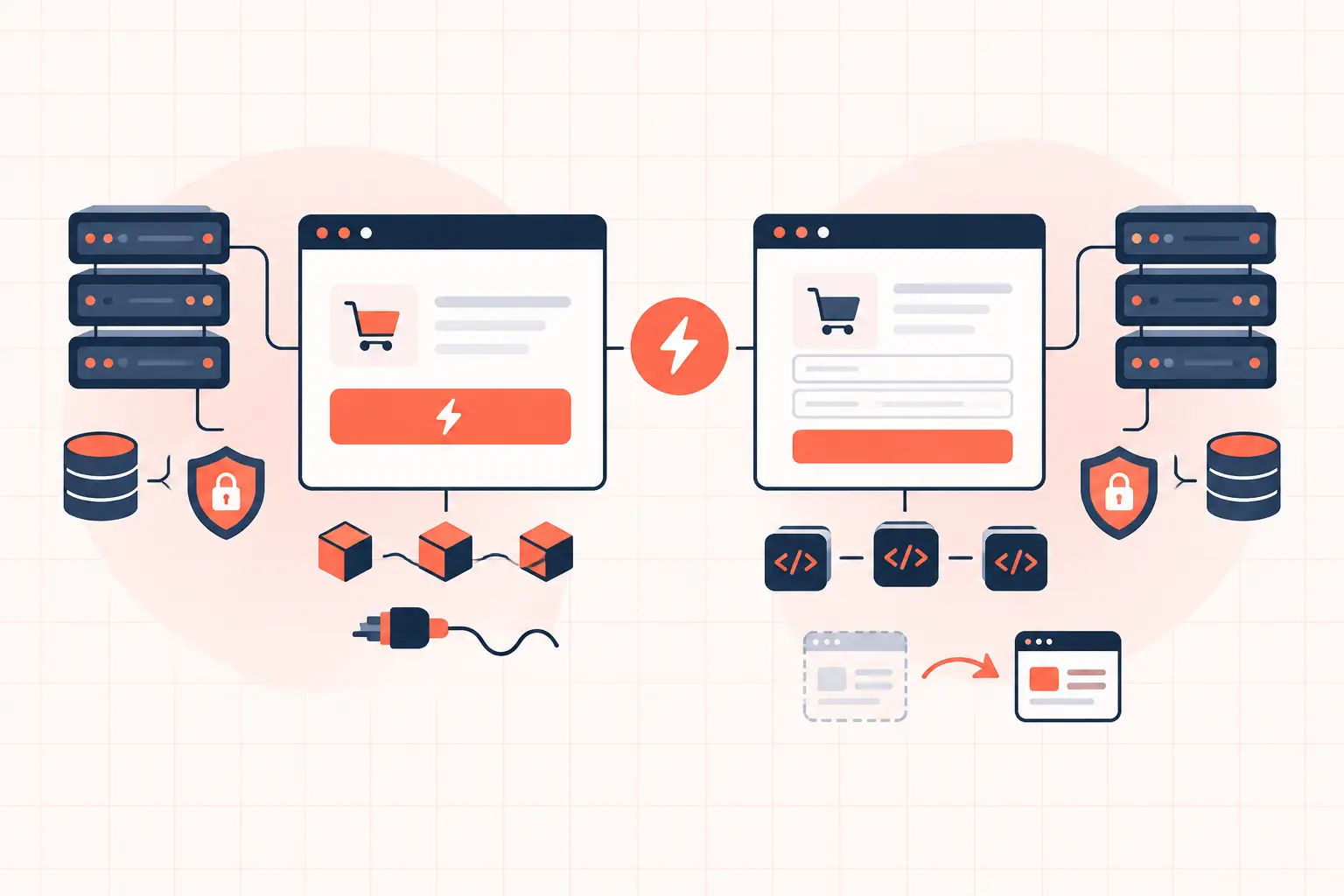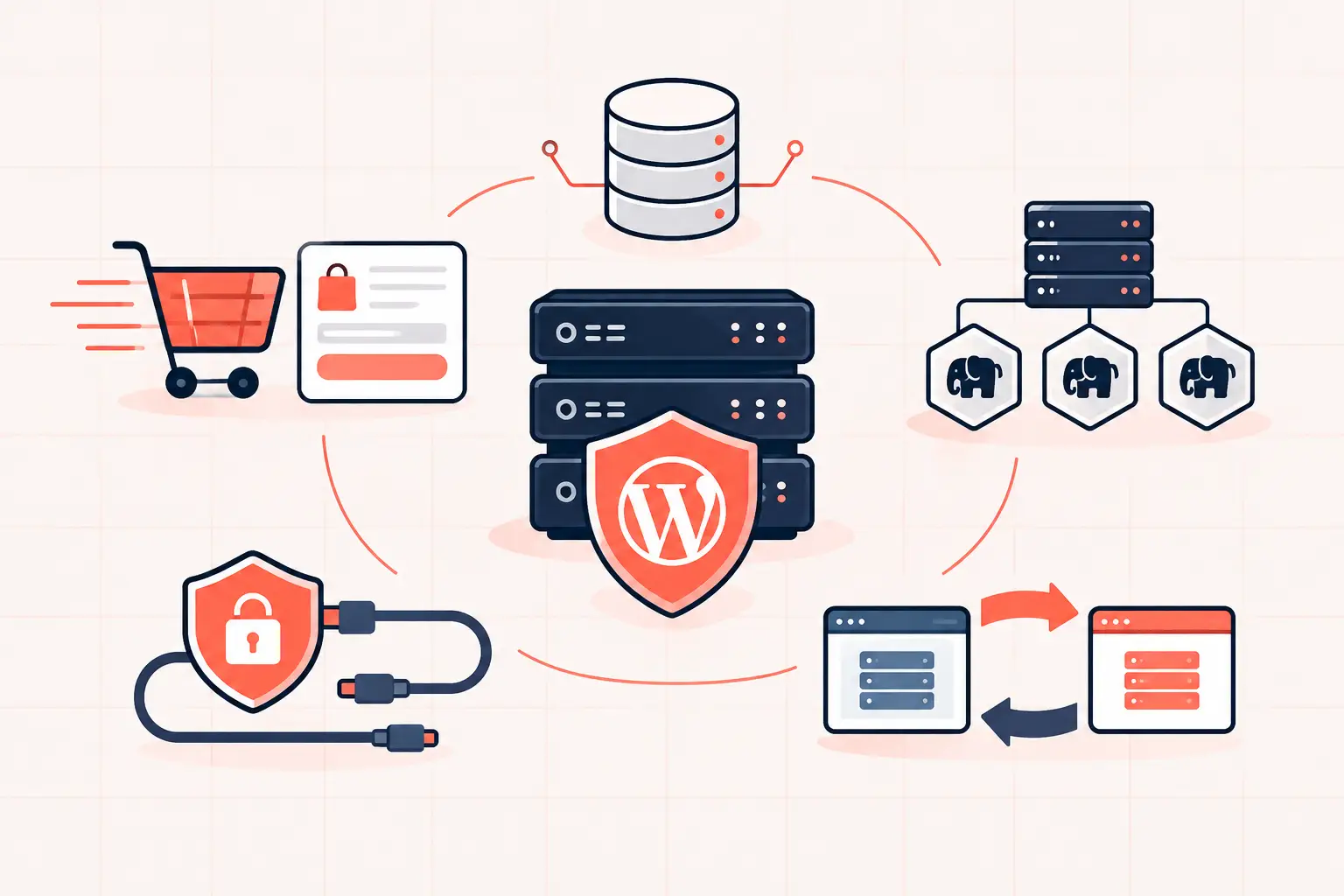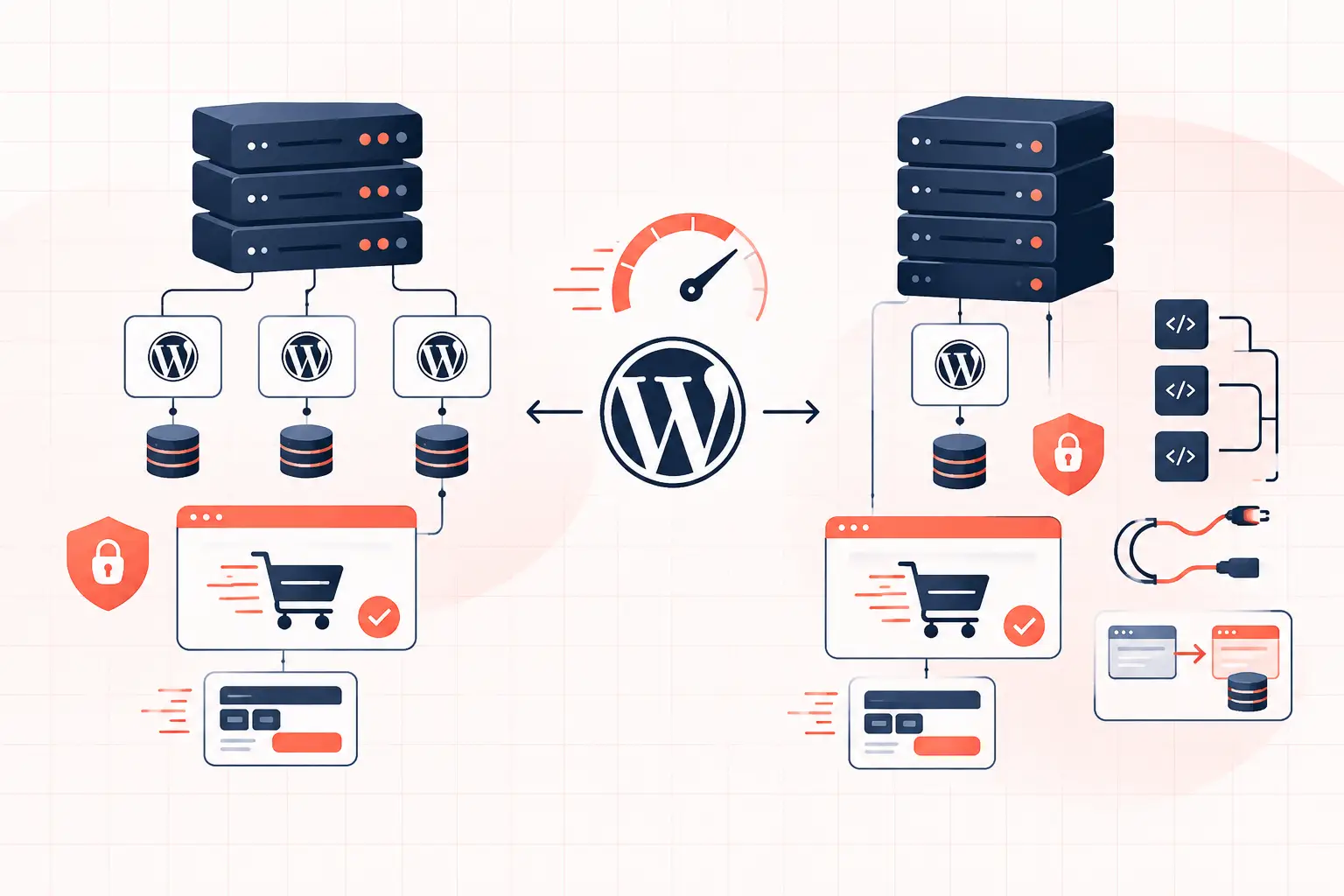
The shared vs dedicated WordPress decision is not really about disk space or a hosting plan label. It is about whether your site gets predictable CPU time, memory, PHP workers, database capacity, and support when traffic or a plugin misbehaves. Shared hosting can be perfectly suitable for a small, cacheable site. Dedicated infrastructure becomes the safer choice when slow TTFB, failed WooCommerce checkouts, admin lag, or traffic spikes start costing money.
The practical rule is simple: choose shared hosting when your site is low-traffic, mostly cached, and not business-critical during short performance dips. Choose dedicated WordPress infrastructure when the site has logged-in users, dynamic commerce, expensive plugins, agency clients, or a clear need for consistent response times.
Shared vs Dedicated WordPress at a Glance
| Factor | Shared WordPress Hosting | Dedicated WordPress Infrastructure |
|---|---|---|
| Server resources | CPU, RAM, storage I/O, and often PHP capacity are shared with other accounts | Resources are reserved for one customer or a tightly controlled environment |
| Cost | Lower monthly entry price | Higher cost, usually with more operational value included |
| Performance consistency | Can vary based on neighboring accounts and host limits | More predictable under sustained load |
| Best for | Brochure sites, new blogs, small portfolios | WooCommerce, agencies, membership sites, high-traffic publishers |
| Troubleshooting | Often limited to account-level fixes | Allows deeper tuning of PHP, caching, databases, and web server behavior |
| Scaling | Frequently means moving to another plan or platform | Can be sized around real workload and growth |
The labels still require scrutiny. Some providers sell a plan called dedicated that is actually a virtual private server with allocated resources. That can be a good setup, but it is not the same as a physical server reserved for your workload. Likewise, shared hosting can perform well for a lightly used WordPress site when the provider enforces fair resource limits and maintains its stack properly.
Do not buy based on the label alone. Ask what CPU capacity, RAM, PHP worker count, database limits, object caching, backup retention, and isolation you actually receive.
What Shared WordPress Hosting Shares
A shared server hosts many customer accounts on the same physical machine. Each account may have a separate file system and user permissions, but the underlying CPU cores, memory, disk I/O, database service, and network capacity are still communal.
That arrangement keeps costs low. It also creates a neighbor problem. A poorly coded WooCommerce store, compromised site sending spam, import job, backup process, or bot traffic event on the same server can consume capacity that your site needs. Better hosts use containers, CloudLinux-style limits, process controls, and monitoring to reduce the impact. Cheap shared plans often do not provide enough headroom when contention arrives.
For WordPress, the pain usually appears in one of four places:
- TTFB rises because PHP requests wait for CPU, disk, or available workers.
- The WordPress admin becomes sluggish during updates, edits, and plugin maintenance.
- WooCommerce cart, checkout, account, and AJAX requests queue because they cannot be served from full-page cache.
- Database queries slow down when the database server is overloaded or has insufficient memory for active data.
A cached landing page may still look fast while the parts of the site that make money are failing. That is why a home page speed test is not enough to judge hosting quality.
When shared hosting is the right call
Shared hosting is reasonable for a new marketing site, local service business, portfolio, or low-volume publication with a modest plugin footprint. If most visitors view public pages and a page cache can serve those pages without invoking PHP, resource demand stays low.
It is also a sensible temporary choice while validating an idea. Spending heavily on infrastructure before a site has traffic or revenue is not disciplined engineering. The requirement is that the host gives you a clean upgrade path and does not trap you behind opaque limits.
What Dedicated WordPress Changes
Dedicated hosting means your environment has reserved compute capacity. On a true dedicated server, the physical hardware is assigned to your organization. On a high-quality dedicated-resource platform, CPU and RAM reservations, process isolation, and account density are controlled tightly enough to deliver similar operational benefits for many workloads.
The meaningful advantage is consistency. Your PHP workers do not have to compete with an unknown neighbor's backup job. Database cache has room to remain warm. Storage I/O is less likely to become a bottleneck. When a traffic spike lands, the server has a known amount of capacity rather than whatever happens to be left.
That does not make WordPress automatically fast. A dedicated server cannot repair an unindexed `wp_postmeta` query, a page builder loading excessive assets, or a plugin that makes remote API calls on every request. It does give you the room and visibility to diagnose those issues without a crowded server masking the root cause.
For CPU-bound WordPress work, processor speed matters as much as core count. PHP requests are often limited by the performance of individual cores, especially when a request runs a large plugin stack or uncached WooCommerce logic. Modern high-frequency hardware, such as AMD Ryzen 9950X systems, can materially improve response times when the application is configured correctly.
The Workloads That Outgrow Shared Hosting First
WooCommerce is usually the first clear dividing line. Product pages can be cached, but carts, checkout, customer accounts, inventory updates, payment callbacks, and admin order screens are dynamic. Each request can require PHP execution, database reads and writes, sessions, and external payment calls.
Membership and learning sites have a similar pattern. Logged-in visitors bypass much of the cache, so every page view places demand on PHP and MySQL. A site with 300 concurrent anonymous readers may be easier to serve than a membership site with 30 active users.
Agencies also benefit from dedicated capacity sooner than a single-site owner. One server hosting multiple client sites needs fault isolation, staging workflows, access controls, backups, and enough headroom that a campaign on one account does not slow the rest. That is an operational requirement, not a luxury feature.
Check These Metrics Before You Upgrade
Do not move a site simply because a dashboard says high resource usage. Determine what is saturated and when. Start with server and application evidence.
Review TTFB on uncached and logged-in paths, not only cached public pages. Watch PHP-FPM worker utilization and request queue length. If all workers are busy, new dynamic requests wait even when CPU usage looks moderate. Check database slow-query logs for repeated queries against `wp_postmeta`, `wp_options`, order tables, and plugin-specific tables.
Also inspect autoloaded options. A bloated `wp_options` table can force WordPress to load far more data than needed on every request. Object caching with Redis can reduce repeat database reads, but it will not fix excessive writes, bad queries, or a worker pool that is too small.
Useful questions for your host or operations team include:
- How many PHP workers are allocated, and can they be adjusted?
- Are CPU and memory limits hard caps or shared pools?
- Is Redis available as a persistent object cache?
- Can you access slow-query data and PHP error logs?
- Are backups frequent, restorable, and tested?
- What happens when traffic exceeds normal levels?
Vague answers are useful information. If a provider cannot identify resource limits or explain how PHP capacity is managed, they are not equipped to support a business-critical WordPress workload.
Moving to Dedicated Infrastructure Without Moving the Problem
Before migration, establish a baseline. Record Core Web Vitals, uncached TTFB, checkout response time, error rate, peak concurrent users, and slow database queries. After the move, test the same pages under similar conditions. Otherwise, a faster server may hide a regression until the next campaign.
Use a staging environment to test the production PHP version, caching rules, payment gateways, transactional email, cron jobs, and plugin updates. For WooCommerce, explicitly test add-to-cart, coupon application, shipping calculation, checkout, payment confirmation, refund workflows, and order emails. These paths are where cache exclusions and background processes commonly break.
Keep WordPress cron under control as well. On busy sites, disable page-load-driven cron and run it through the server scheduler instead:
define('DISABLE_WP_CRON', true);Then configure a real server cron job to request `wp-cron.php` at an appropriate interval. The correct schedule depends on order volume, publishing frequency, and queued tasks. Running it every minute for a quiet brochure site is needless load; running it too infrequently can delay subscriptions, stock updates, and scheduled content.
A managed platform such as WP Tango should be judged by the same standard: clear resource allocation, modern high-frequency hardware, useful observability, server-level caching, safe staging, and recoverable hourly backups. The point is not to buy a bigger plan. It is to remove infrastructure uncertainty while keeping the application maintainable.
The best time to move is before a slow checkout or failed promotion becomes an emergency. If your site is already showing worker queues, database delays, or unstable TTFB, fix the bottleneck first, then give WordPress the infrastructure headroom it needs to stay fixed.