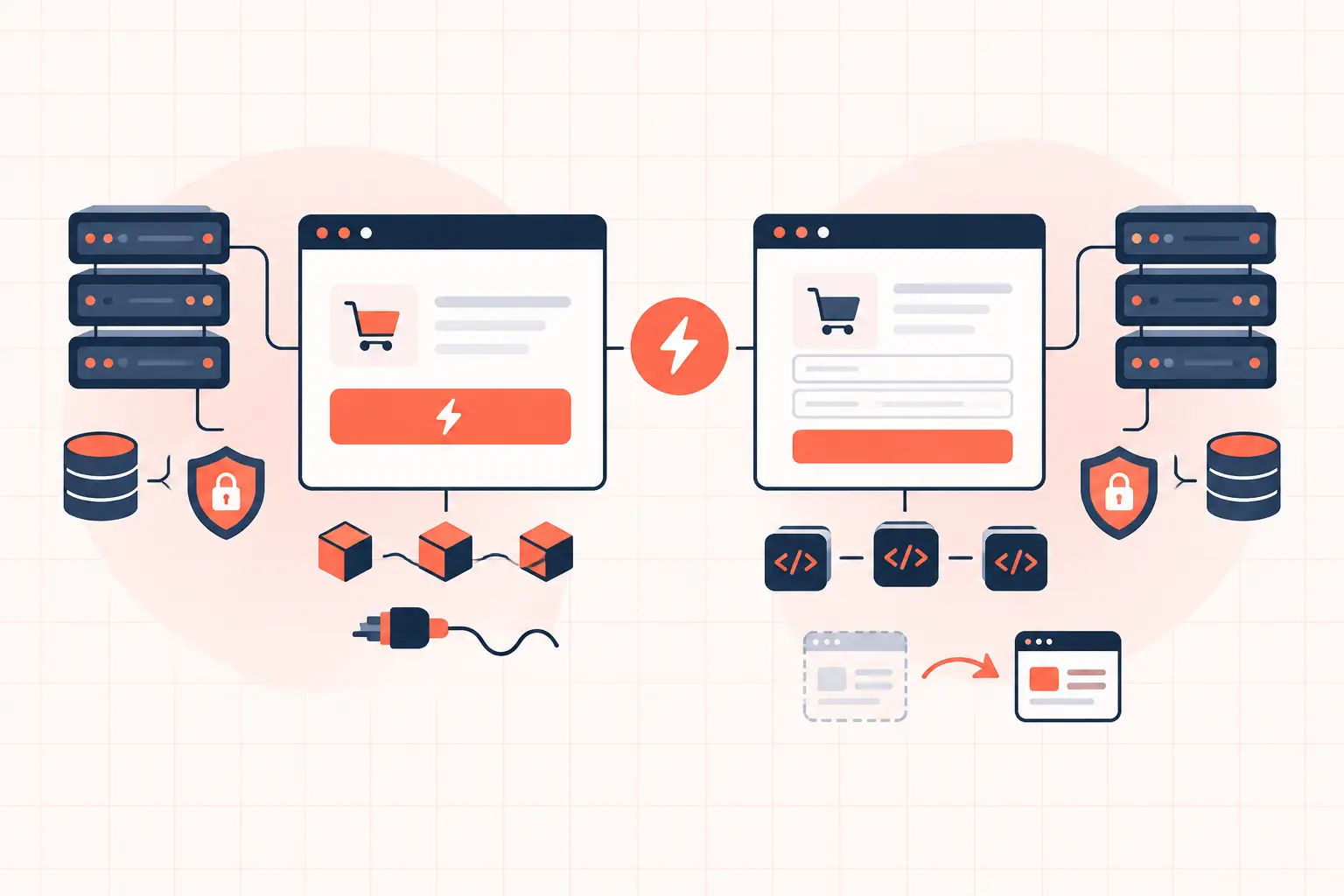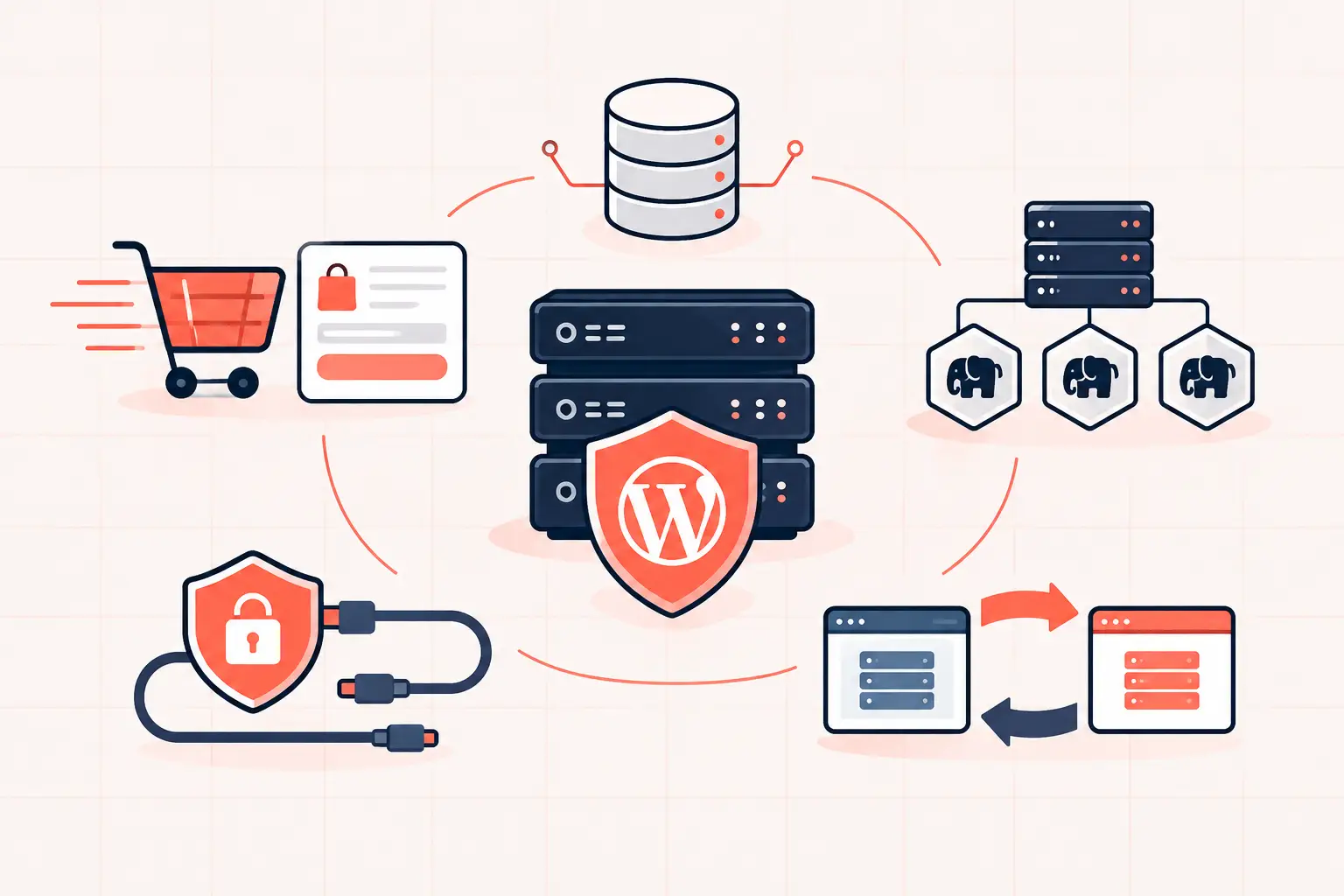
A checkout that takes six seconds to create an order is a revenue problem, not a minor WordPress performance issue. Can plugins slow checkout? Absolutely. But the number of active plugins tells you almost nothing by itself. One poorly timed API request, expensive database query, or PHP process that is already busy can delay checkout more than 40 well-built plugins.
The fix is to measure the uncached checkout request, identify what runs during it, and remove or defer work that does not need to block payment. Do not start by deactivating random plugins on a live store. Checkout is stateful, non-cacheable, and easy to break when testing carelessly.
Why plugins can slow WooCommerce checkout
A WooCommerce checkout request is different from a product page. Product and category pages can often be served from full-page cache. Checkout cannot. Each request needs the current cart, customer session, shipping choices, tax rules, coupons, payment details, stock status, and order data.
That means PHP, MySQL, and often third-party services are involved on every checkout attempt. A plugin can slow this path in several ways:
- It adds expensive code to `woocommerce_checkout_process`, `woocommerce_after_checkout_validation`, or `woocommerce_checkout_order_processed`.
- It runs repeated or unindexed database queries against orders, sessions, post meta, or custom tables.
- It calls an external API for fraud screening, address validation, shipping rates, tax calculation, CRM syncing, or analytics before the customer receives a response.
- It makes unnecessary HTTP calls through WordPress cron or `wp_remote_get()` during the same request.
- It creates heavy session writes or fragments that fire each time checkout fields change.
- It consumes PHP workers that checkout needs, even if the plugin is not directly hooked into checkout.
The last point is routinely missed. A backup job, import, security scan, or broken bot-protection integration can occupy all available PHP workers. The shopper then waits in a queue before WooCommerce executes any checkout code. A plugin is involved, but the visible symptom is PHP worker contention rather than a slow function.
Plugin count is not the diagnosis
The question is not "how many plugins are installed?" It is "what code runs on the checkout request, how long does it take, and what does it wait for?"
A lean store with a payment gateway, tax service, live shipping calculator, subscription plugin, currency converter, fraud platform, email automation connector, and analytics stack may have only 12 plugins. It can still have a slow checkout because each service adds synchronous work.
Conversely, a mature site may run 50 plugins without checkout trouble if most are inactive on WooCommerce routes, use efficient queries, and avoid remote calls during order creation. Plugin quality, hook behavior, configuration, and server capacity matter far more than the raw count.
Find where checkout time is going
Start with a controlled test. Use a staging clone with production-like data where possible, or test on production only during a quiet period using a real low-value product and a controlled payment method. Record the time from clicking Place order until the confirmation page appears. Test logged-out as well as logged-in customers because account data and role-based pricing can change the request path.
Check the browser request first
Open your browser developer tools, go to Network, and submit checkout. Look for the request that creates the order. Depending on your setup, this may be an AJAX request to `/?wc-ajax=checkout` or a Store API endpoint for block checkout.
Focus on two timings. Waiting time usually points to slow PHP, database work, or a remote dependency. A long request payload or response can indicate excessive checkout fields, cart fragments, or a plugin returning unnecessary data, but that is less common.
If the request is slow before payment is even attempted, inspect shipping, tax, coupon, checkout-field, loyalty, and validation extensions. If it becomes slow only after submitting payment, inspect the gateway, fraud service, order hooks, receipt emails, and post-order automations.
Profile PHP and database activity
Use an application performance monitoring tool or a WordPress profiler that can show hook timing, database queries, HTTP API calls, and slow transactions. Query Monitor is useful in a controlled admin session, but it is not a substitute for tracing a real checkout transaction under normal load.
You are looking for evidence, not guesses: a callback taking 1.8 seconds, an API call timing out at 5 seconds, or a repeated query against `wp_postmeta`. A slow query is especially common on older WooCommerce sites where orders remain stored as posts and post meta has grown without proper indexing.
For database-level confirmation, inspect the MySQL slow query log. On a managed environment, ask for the checkout transaction timing and slow-query entries for the test window. Do not accept "the server looks fine" as a diagnosis. You need to know whether time was spent in PHP execution, database queries, upstream API calls, or queueing.
Check PHP worker saturation
A fast checkout needs an available PHP worker. If all workers are busy, the request waits before WordPress starts. This produces inconsistent delays: checkout may be quick at 3 a.m. and painful during a sale.
Compare request duration with queue time in your APM or host metrics. High CPU is one clue, but it is not the only one. Long-running PHP processes, slow remote calls, and too few workers can all create a backlog. Adding workers can help, but only if the database and CPU can support them. Raising worker limits blindly can turn a manageable queue into database saturation.
Test the suspected plugin without damaging sales
Once profiling names a likely plugin or integration, reproduce the test on staging. Disable only that component, clear WooCommerce sessions if appropriate, and repeat the same checkout flow several times. Compare median timing, not one lucky run.
If disabling the plugin saves two seconds, you have a useful lead. That does not automatically mean the plugin must be removed. Check its settings and purpose first. A fraud tool may allow asynchronous review for low-risk orders. A CRM connector may be able to sync after checkout through Action Scheduler. A shipping extension may support caching rates by destination and cart contents.
Never disable a payment gateway, tax engine, or fraud system permanently just because it is slow. The trade-off may be acceptable if it prevents chargebacks or keeps tax calculations accurate. The goal is to move nonessential work off the customer-facing request, not to strip away needed business controls.
Fix the common checkout bottlenecks
Move post-order work into a background queue
Order exports, CRM tags, loyalty updates, review requests, analytics events, and fulfillment notifications usually do not need to finish before the thank-you page loads. Use WooCommerce Action Scheduler or the integration's own asynchronous mode to process them after the order is safely created.
Background processing still needs monitoring. A large failed-action backlog can become its own database problem. Keep Action Scheduler tables maintained, confirm jobs are actually running, and set sensible retry behavior for failed API calls.
Put time limits on remote services
Every synchronous API adds a point of failure. Address validation and fraud checks may be necessary, but an unresponsive vendor should not leave a shopper waiting indefinitely.
Review API timeout settings, fallback behavior, and retry logic. A checkout request should not retry a remote endpoint several times before returning an error. If a plugin offers a choice between live validation on every keystroke and validation after submission, test the latter. Recalculating shipping and tax repeatedly as customers type is a common source of avoidable load.
Reduce expensive WooCommerce queries
Update WooCommerce and extensions before modifying database indexes. Older extensions often query legacy order tables inefficiently or load far more metadata than needed. If your store qualifies, High-Performance Order Storage can reduce pressure from post and post-meta order queries, but test every order-related extension in staging before enabling it.
Object caching can reduce repeated reads for options, transients, and frequently requested data. It will not cache the entire checkout, and it will not repair a bad query. Server-level Redis object caching is useful when it is configured correctly and excluded from caching customer-specific cart or session data.
Keep cache rules honest
Do not full-page cache cart, checkout, or My Account pages. That can expose cart contents or break sessions. Also verify that performance plugins are not delaying required checkout scripts, combining them incorrectly, or applying aggressive JavaScript deferral to payment fields.
Test express payment buttons, coupon entry, address changes, and guest checkout after every optimization. A faster checkout that fails for Apple Pay, PayPal, or a specific state is not an optimization.
When hosting is the limiting factor
Plugin fixes cannot overcome an overloaded server forever. Checkout depends on fast single-thread PHP execution, low-latency database access, enough PHP capacity for peaks, and reliable object caching. Cheap shared plans frequently hide these limits until traffic rises because cached pages look acceptable while uncached checkout requests queue.
For stores with recurring campaigns or agency-managed traffic spikes, monitor checkout TTFB separately from homepage TTFB. They are different workloads. Modern high-frequency CPUs, such as AMD Ryzen 9950X systems, are particularly useful for WordPress because PHP requests often benefit more from fast per-core performance than from a large but slow shared CPU pool.
A checkout is the one page where every extra second has a direct cost. Treat it as a transaction path: profile it, measure it under realistic load, and make each plugin prove that its work belongs before the order confirmation appears.