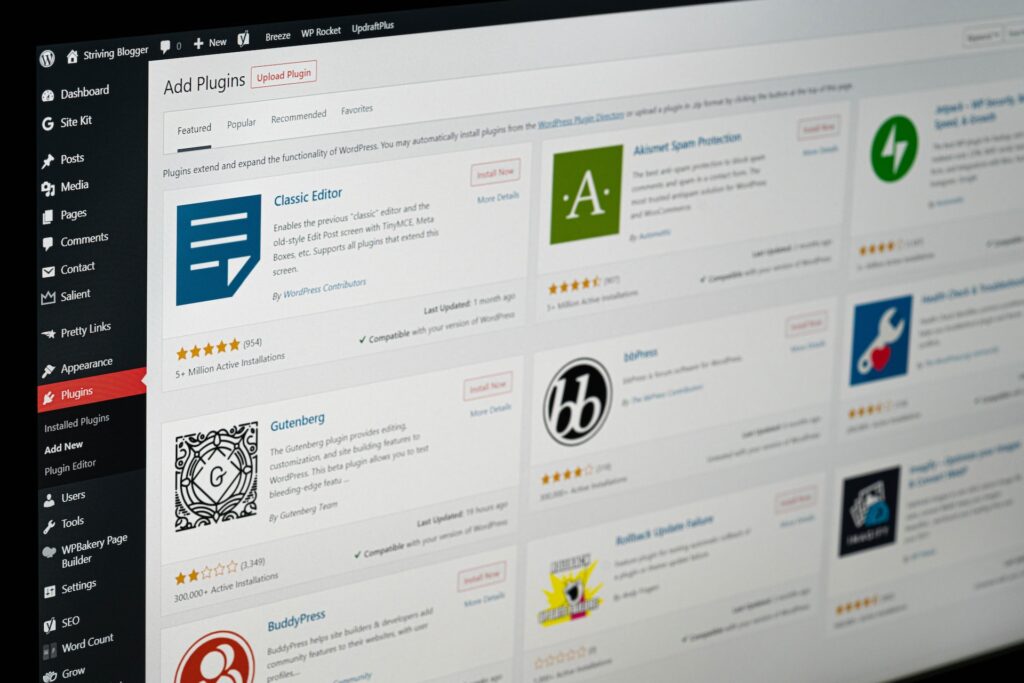

Every second your WordPress site takes to load, visitors leave. Studies show that a one-second delay in page load time can reduce conversions by up to 7%, and Google’s ranking algorithm actively penalizes slow sites. If you’re managing a WordPress site for a business or client, slow performance isn’t just an annoyance. It’s a revenue problem. This guide walks you through every layer of WordPress speed optimization, from choosing the right hosting foundation to validating real-world improvements with field data. You’ll get specific tools, actionable steps, and honest advice on what actually moves the needle.
Table of Contents
- Get the basics right: Hosting and prerequisites
- Build a lean setup: Plugins, themes, and bloat reduction
- Boost speed with caching and database optimization
- Test, troubleshoot, and measure your results
- A smarter way to speed: What most guides miss
- Need expert help speeding up your WordPress site?
- Frequently asked questions
Key Takeaways
| Point | Details |
|---|---|
| High-performance hosting first | Upgrading your hosting is the fastest way to slash load times and improve reliability. |
| Minimize plugins and bloat | A lean plugin stack and lightweight theme are crucial for optimal site speed. |
| Layer caching for maximum gains | Multi-level caching and regular database cleaning deliver real, measurable speed improvements. |
| Test, measure, then optimize | Always use speed measurement tools before and after changes to confirm real-world performance boosts. |
Get the basics right: Hosting and prerequisites
Before you touch a single plugin or theme setting, you need to understand one thing: your hosting environment determines the ceiling for everything else you do. No amount of caching or code minification will save a site running on an overcrowded shared server.
Time to First Byte, or TTFB, is the metric that reveals your server’s responsiveness. It measures how long a browser waits before receiving the first byte of data from your server. A TTFB above 600ms is a red flag. To achieve TTFB under 400ms, you need high-performance managed WordPress hosting with PHP 8+, SSD storage, server-side caching, and CDN integration. That’s not a luxury. It’s the baseline.
The data backs this up. Managed hosts like Kinsta and SiteGround consistently hit TTFB benchmarks between 19ms and 335ms with 99.99% uptime, while shared hosting regularly lags far behind those numbers. The difference is infrastructure, not configuration.
Here’s what your hosting environment should include before you start any optimization work:
- PHP 8.3 or higher for faster execution and better memory efficiency
- OPcache enabled to cache compiled PHP bytecode and reduce processing overhead
- NVMe or SSD storage for dramatically faster read/write speeds compared to spinning disk drives
- Server-side caching like Redis or built-in full-page cache at the hosting level
- CDN integration to serve static assets from edge locations closer to your visitors
| Hosting type | Typical TTFB | Uptime reliability | PHP version support |
|---|---|---|---|
| Shared hosting | 600ms+ | 99.5% or lower | Often PHP 7.x |
| Managed WordPress | 19ms to 335ms | 99.99% | PHP 8.3+ |
| VPS (unmanaged) | Varies widely | Depends on setup | Configurable |
For measuring your current baseline, use Google PageSpeed Insights, GTmetrix, or WebPageTest before making any changes. These tools give you a snapshot you can compare against later.
Pro Tip: Test your TTFB from multiple geographic locations using WebPageTest’s free tool. A fast TTFB in one region but slow in another often points to a missing or misconfigured CDN.
If you’re evaluating options, explore high-performance hosting solutions that prioritize real hardware metrics over marketing claims. For WordPress-specific infrastructure, WordPress hosting services built around PHP 8.3, NVMe storage, and server-side caching give you the foundation everything else depends on.
Build a lean setup: Plugins, themes, and bloat reduction
Once your hosting foundation is solid, look inward at your site’s architecture. Plugins and themes are the most common source of self-inflicted performance problems in WordPress.

Every plugin you activate adds PHP execution, database queries, and often extra CSS or JavaScript to your pages. Some plugins are worse than others. A poorly coded plugin can generate dozens of redundant database queries on every page load. To find the culprits, install Query Monitor. It shows you exactly which plugins are firing database queries, how many, and how long they take. Use Query Monitor to identify N+1 queries and resource-heavy plugins, then audit your stack ruthlessly.
Here’s a step-by-step process for auditing your plugin stack:
- List every active plugin and its stated purpose
- Identify duplicates (two SEO plugins, two caching plugins, etc.)
- Deactivate and delete plugins that aren’t actively used
- Test site speed after each removal to measure impact
- Replace heavy multi-feature plugins with lightweight single-purpose alternatives
Theme choice matters just as much. Lightweight themes like Astra, GeneratePress, and Neve load fast because they ship minimal CSS and JavaScript by default. Heavy page builders like Elementor add significant DOM size and JavaScript overhead, which directly increases your Largest Contentful Paint (LCP) score.
| Theme type | Typical page weight | JS/CSS overhead | LCP impact |
|---|---|---|---|
| Lightweight (Astra, GeneratePress) | Under 50KB | Minimal | Low |
| Standard themes | 100KB to 300KB | Moderate | Medium |
| Heavy page builders (Elementor) | 400KB+ | High | High |
Pro Tip: If you’re committed to a page builder, limit its use to key landing pages only. Use a lightweight theme for blog posts and secondary pages where the builder’s overhead isn’t justified.
For sites that need speed without sacrificing flexibility, lightweight WordPress hosting paired with a minimal theme stack is the most reliable path to consistent performance.
Boost speed with caching and database optimization
With a lean codebase in place, caching is where you get the biggest performance multiplier for the least amount of effort.
Caching works by storing a pre-built version of your pages so WordPress doesn’t have to regenerate them from scratch on every visit. There are three layers you should implement:
- Full-page caching stores complete HTML pages. Plugins like WP Rocket and LiteSpeed Cache handle this at the application level, while some managed hosts include it server-side.
- Object caching with Redis or Memcached stores the results of database queries in memory. This can reduce database load by 50 to 90%, which is a dramatic improvement for content-heavy or WooCommerce sites.
- Browser caching tells visitors’ browsers to store static assets locally, so returning visitors load your site almost instantly.
Database optimization is the other half of this equation. Over time, WordPress databases accumulate post revisions, spam comments, expired transients, and autoloaded options that slow down every query. Regularly cleaning your database by deleting revisions, transients, and spam using WP-CLI or WP-Optimize can reduce database size by 30 to 60%, which directly improves query response times.
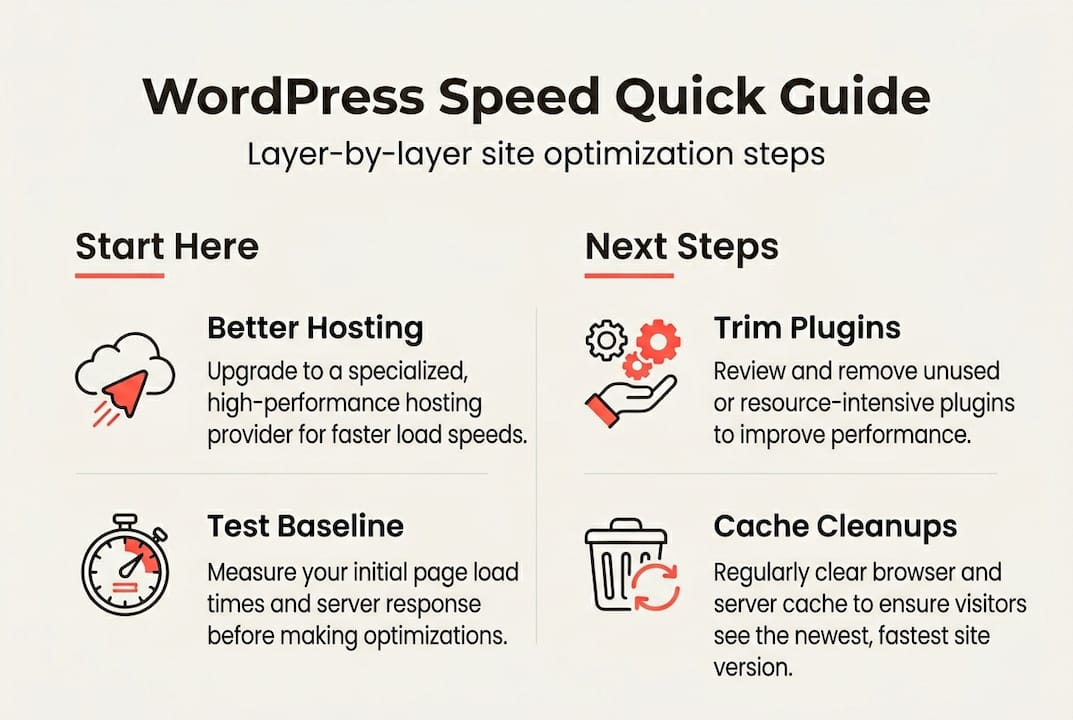
Schedule these cleanups monthly. Don’t wait until your database is bloated to act. Pair this with a scheduled cache purge after major content updates so visitors always get fresh, fast-loading pages.
Staying current with your software stack also matters. Keeping plugins up to date ensures you benefit from performance improvements and security patches that developers release regularly.
Test, troubleshoot, and measure your results
Applying optimizations without measuring them is guesswork. Every change you make should have a before and after data point attached to it.
Here’s the step-by-step process for validating your improvements:
- Run a baseline test on PageSpeed Insights, GTmetrix, and WebPageTest before making any changes
- Apply one optimization at a time, not all at once
- Clear all caches after each change
- Re-run the same tests and record the delta
- Use Chrome User Experience Report (CrUX) for real-world field data, not just lab scores
Lab scores from PageSpeed Insights use a simulated environment. Field data from CrUX reflects what actual visitors experience on real devices and networks. Prioritize field data from CrUX over lab scores when evaluating whether your changes are working in the real world.
When troubleshooting persistent slowness, work through these common culprits:
- Caching plugin not serving cached pages to logged-in users or mobile visitors
- Plugin conflicts causing redundant scripts to load on every page
- Images not compressed or served in next-gen formats like WebP
- Third-party scripts (chat widgets, analytics, ad networks) blocking page rendering
- Database autoloaded options exceeding 1MB, slowing every page load
“A case study in Core Web Vitals optimization showed a PageSpeed jump from 56 to 90 (+61%), LCP improvement from 15.7 seconds to 2.3 seconds (85% faster), and average search ranking position improving from 42 to 14.5 after optimization.”
That kind of result doesn’t come from one tweak. It comes from systematically addressing each layer, measuring after every change, and following WordPress maintenance best practices to keep improvements from degrading over time. Consistent maintenance for better performance is what separates sites that stay fast from sites that drift back to slow.
A smarter way to speed: What most guides miss
Most WordPress speed guides send you straight to plugin recommendations. Install this caching plugin. Add this optimizer. Enable that feature. The problem is that stacking tools on a weak foundation doesn’t fix the foundation.
After working through hundreds of performance audits, the pattern is clear: the sites that achieve lasting speed gains start with architecture, not tools. Quality hosting, a lean plugin stack, and a lightweight theme will outperform a bloated site with every optimization plugin installed.
There’s also a real cost to over-optimization. Running three conflicting caching plugins, an image optimizer, a minifier, and a CDN plugin simultaneously often creates more problems than it solves. These tools step on each other. Cache gets invalidated unexpectedly. Scripts break. You spend hours debugging what should have been a simple setup.
The sites we see perform best long-term are the ones that embrace minimalism. They use WordPress support strategies that focus on sustainable performance rather than chasing lab scores. Real-world field data is the only honest measure of success. If your visitors are experiencing fast load times, you’ve done your job. Everything else is noise.
Need expert help speeding up your WordPress site?
Optimizing WordPress performance layer by layer takes time, testing, and the right infrastructure underneath it all. If you’d rather skip the trial and error, WP Tango’s managed hosting and maintenance plans are built specifically for sites where speed and reliability aren’t optional.
From Lite WordPress Hosting designed for lean, fast-loading sites to fully managed environments for agencies and high-traffic businesses, WP Tango handles the technical heavy lifting so you can focus on your content and customers. Explore WordPress maintenance plans that include performance monitoring, updates, and expert support, all designed to keep your site running at its best without the ongoing headache.
Frequently asked questions
What is the fastest way to improve WordPress speed?
Switching to high-performance managed hosting and enabling full-page caching typically delivers the biggest and quickest speed boost. Managed hosting with PHP 8+ and server-side caching can bring TTFB under 400ms almost immediately.
How many plugins are too many for a WordPress site?
There’s no set number, but fewer is always better. Audit and minimize plugins regularly, remove anything unused, and avoid duplicates to prevent bloat and conflicts that slow down every page load.
Do themes impact WordPress speed?
Yes, significantly. Lightweight themes like Astra and GeneratePress load much faster than heavy page builders, which add substantial JavaScript and CSS overhead that inflates your LCP score.
How do I measure if my speed improvements work?
Use PageSpeed Insights, GTmetrix, and Core Web Vitals to test before and after each change. For the most accurate picture, rely on field data from CrUX rather than lab scores alone.
Why is my WordPress site still slow after optimization?
Server quality, plugin conflicts, or database issues may still be present. Audit plugins for conflicts and review each layer systematically, starting with hosting and caching before moving to frontend fixes.